The Unplanned Work Tracker assesses the disruption that unplanned work causes to an active sprint at configured checkpoints. It identifies net-new work added after sprint lock and evaluates its impact using addition magnitude, assignee collision, and accumulation pattern.
The agent is designed for Scrum Masters who need to understand whether unplanned work is putting committed sprint work at risk and where intervention may be required.
What does the Unplanned work tracker do?
Unplanned work can erode sprint commitments without being immediately visible. The Unplanned Work Tracker compares the work committed at sprint lock with work added after the sprint started and evaluates whether the additions are disrupting committed work.
At each configured checkpoint, the agent:
Identifies the stories committed at sprint lock.
Identifies qualifying work added after sprint lock.
Applies configured issue-type and label filters.
Determines which committed stories are stalled.
Assesses the magnitude of unplanned work.
Evaluates whether unplanned work is colliding with assignees who have stalled committed work.
Identifies whether additions are concentrated or spread across the sprint.
Generates a disruption report with an overall assessment, assignee impact, and coverage notes.
Sends the report by email when recipients are configured.
In simple terms: Unplanned Work Tracker makes sprint disruption visible while there is still an opportunity to act on it.
Before you start
For the agent to produce meaningful results, the workspace should have:
A connected planning tool such as Jira Software or ADO Boards.
An active sprint with work committed at sprint lock.
Sprint and work-item data already available in Cubyts.
Appropriate workspace members configured as the audience.
Email recipients configured if email delivery is required.
The agent uses sprint and work-item information available through the connected planning integration.
Configure Unplanned Work Tracker
To configure the agent, open:
Settings → Agents → Unplanned Work Tracker
The configuration consists of three sections:
Run Configurations
Audience
Integrations
The agent can be enabled or disabled using the toggle in the top-right corner.
The agent is intended for Scrum Masters.
1. Run Configurations
The Run Configurations section controls the checkpoints at which the agent evaluates sprint disruption and the rules used to identify unplanned work.
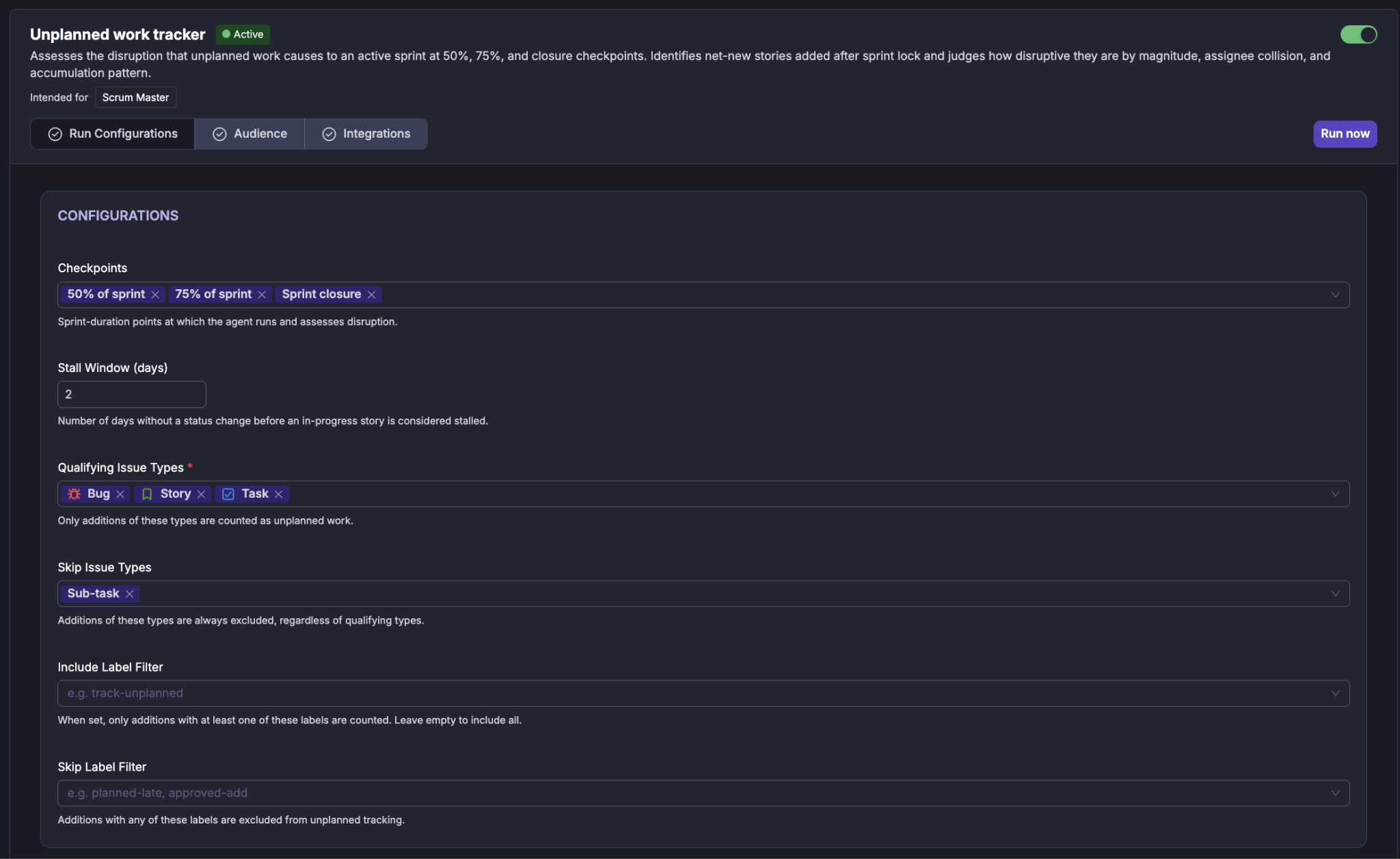
Checkpoints
Use Checkpoints to select when the agent evaluates the active sprint.
The supported checkpoints are:
50% of sprint
75% of sprint
Sprint closure
The supplied configuration screen has all three checkpoints selected.
These checkpoints allow the team to see disruption during the sprint as well as at closure.
Stall Window (days)
Stall Window (days) defines how many days an in-progress committed story can remain without a status change before it is considered stalled.
For example, with a stall window of 2 days, an in-progress story with no status transition for two days can be flagged as stalled.
The supplied configuration uses 2 days.
Qualifying Issue Types
Qualifying Issue Types defines the work-item types that can count as unplanned additions.
For example:
Bug
Story
Task
Only additions matching the configured types are considered unplanned work.
Skip Issue Types
Skip Issue Types explicitly excludes work-item types from unplanned-work tracking.
For example:
Sub-task
Items matching a skipped type are excluded even if they otherwise match the qualifying types.
Include Label Filter
Include Label Filter can be used when only additions carrying particular labels should be counted.
For example: track-unplanned
When one or more labels are configured, an addition must have at least one of those labels to be included.
Leave the field empty to include all qualifying additions.
Skip Label Filter
Skip Label Filter excludes additions carrying specified labels.
For example: planned-late, approved-add
Any addition carrying one of the configured skip labels is excluded from unplanned-work tracking.
Leave the field empty to disable this filter.
2. Audience
The Audience section determines who receives the results of the agent.
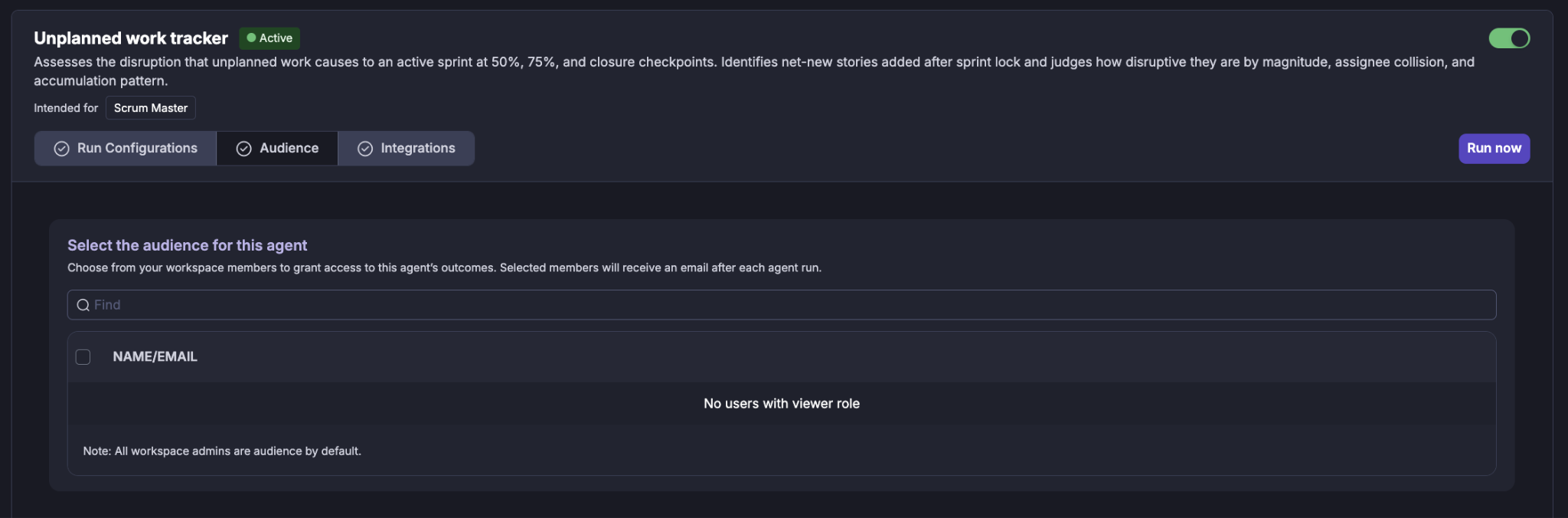
Select the workspace members (Viewers) who should have access to the agent's outcomes. Selected members receive an email after each agent run when email delivery is configured.
Selecting users
Use the Find field to search for a workspace member by name or email. Select the required users using the checkbox next to their name.
Workspace administrators are included as audience members by default.
If there are no users with the required viewer role, the audience list will indicate that no eligible users are available.
3. Integrations
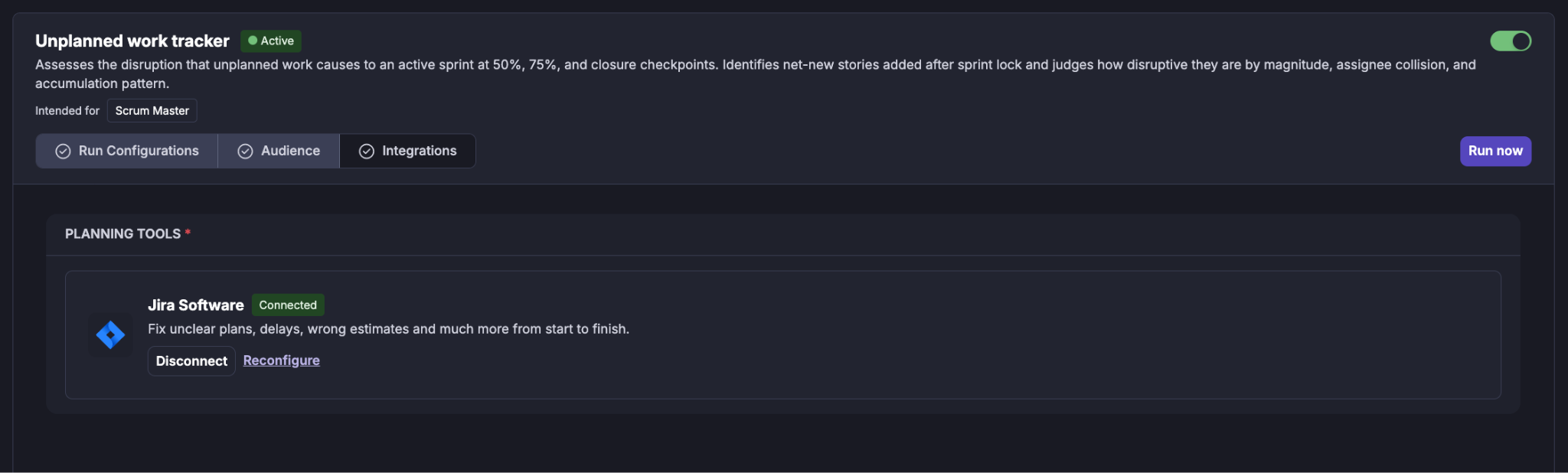
The Integrations section shows the tools required by the agent. The integrations are grouped by purpose.
Planning Tools
For example: Jira Software
The planning integration provides the sprint and work-item information required to:
Establish the committed sprint baseline.
Identify additions made after sprint lock.
Determine committed-work progression.
Evaluate stalled committed stories.
A connected integration is shown with a Connected status.
You can:
Disconnect the integration.
Reconfigure the integration.
Running the Unplanned Work Tracker
The agent can be run in two ways:
Scheduled run
When configured for scheduled execution, the agent evaluates the sprint at the selected checkpoints.
The configured checkpoints determine when the assessment is performed:
50% of sprint → 75% of sprint → Sprint closure
Scheduled execution supports continuous visibility into the effect of unplanned work as the sprint progresses.
Manual run
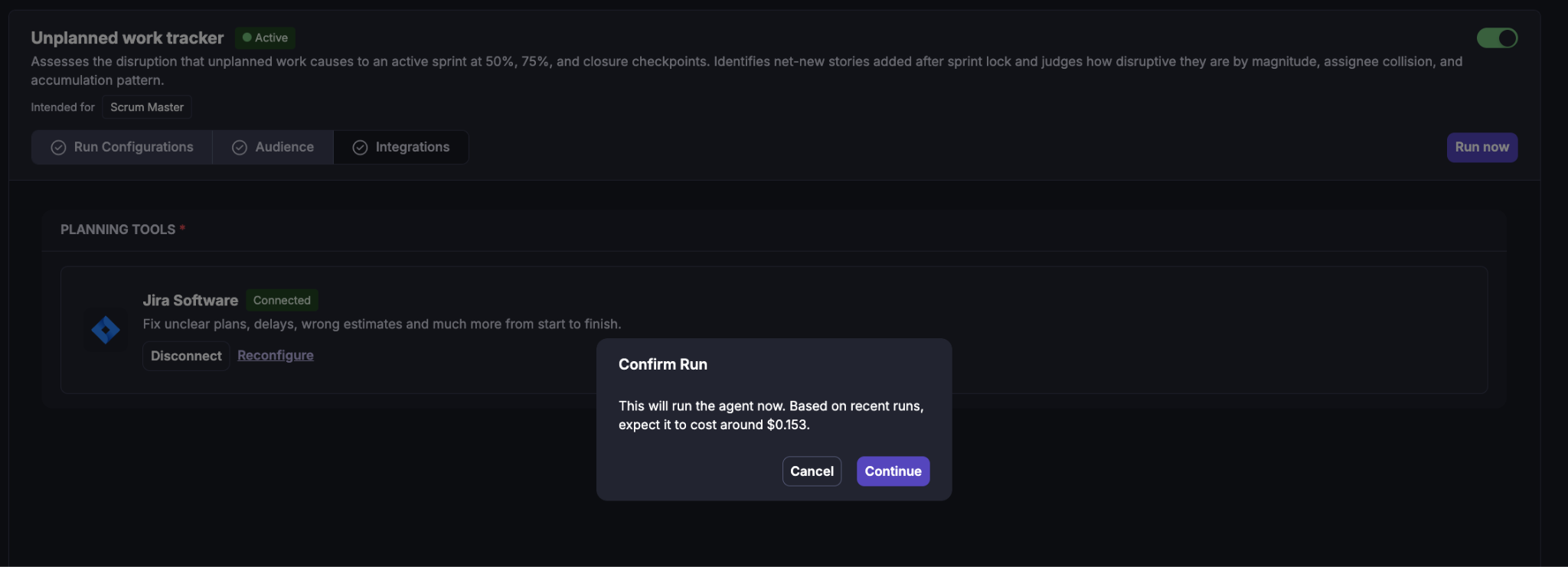
A user can initiate an immediate assessment using Run now.
When Run now is selected, Cubyts displays a confirmation dialog before starting the run.
The supplied example shows:
Confirm Run
This will run the agent now. Based on recent runs, expect it to cost around $0.153.
The displayed cost is an estimate based on recent runs and is shown before execution.
The user can select:
Cancel — do not start the run.
Continue — start the assessment.
What happens during a run?
Once an audit starts, Cubyts follows a controlled sequence.
Step 1: Resolve checkpoint and sprint context
The agent determines:
The configured checkpoint.
The active sprint.
The sprint baseline.
The applicable configuration.
The configured stall window.
The issue-type and label filters.
The checkpoint determines which point in the sprint is being assessed.
Step 2: Establish the committed baseline
The agent identifies the work that was committed at sprint lock.
This baseline represents the work the sprint originally intended to deliver.
The baseline is used as the reference point for determining whether later additions are disrupting committed work.
Step 3: Identify unplanned additions
The agent identifies work added after sprint lock.
An addition is considered for unplanned tracking when it:
Was added after the sprint baseline was established.
Matches the configured qualifying issue types.
Is not a skipped issue type.
Passes the configured include-label filter, when one is configured.
Does not match a configured skip label.
The result is the set of qualifying unplanned additions.
Step 4: Determine committed-work progression
The agent checks the progression of committed baseline stories.
A committed story can be considered stalled when:
It remains To Do, or
It remains In Progress without a status transition within the configured stall window.
This allows the agent to distinguish normal unplanned additions from additions that may be competing with work already committed to the sprint.
Step 5: Assess disruption magnitude
The agent evaluates the magnitude of unplanned work.
Magnitude is based primarily on the relative amount of unplanned work compared with the committed baseline. Where story-point coverage is available, effort can provide additional context; where coverage is mixed, the assessment can rely more heavily on item counts.
The report classifies disruption as:
Low
Moderate
High
Critical
The classification is an assessment of sprint disruption rather than a simple count of added items.
Step 6: Evaluate assignee impact
The agent checks whether people receiving unplanned work also have committed baseline work that is stalled.
This helps identify potential displacement.
For each impacted assignee, the report can show:
Assignee
Unplanned added
Committed stalled
Impact
The impact assessment distinguishes situations such as likely displacement from cases where displacement cannot be established.
Step 7: Evaluate accumulation pattern
The agent assesses how additions accumulated during the sprint.
The report can characterize the pattern as:
Front-loaded — most additions occurred earlier in the sprint.
Back-loaded — additions accumulated later.
Uniform — additions were distributed more evenly.
It also considers whether additions are:
Concentrated on a small number of people, or
Spread across multiple assignees.
This provides context beyond the total number of additions.
Step 8: Generate the report
The final disruption report is stored in Cubyts.
The report provides:
Checkpoint and sprint context.
Committed baseline count.
Unplanned addition count.
Stalled committed-work count.
Excluded-item count.
Overall disruption magnitude.
Assignee impact.
Disruption summary.
Coverage and data-quality notes.
When recipients are configured, Cubyts also sends an email version of the report.
Understanding the Unplanned Work Report
The report provides a consolidated view of the backlog items evaluated for the upcoming planning cycle.
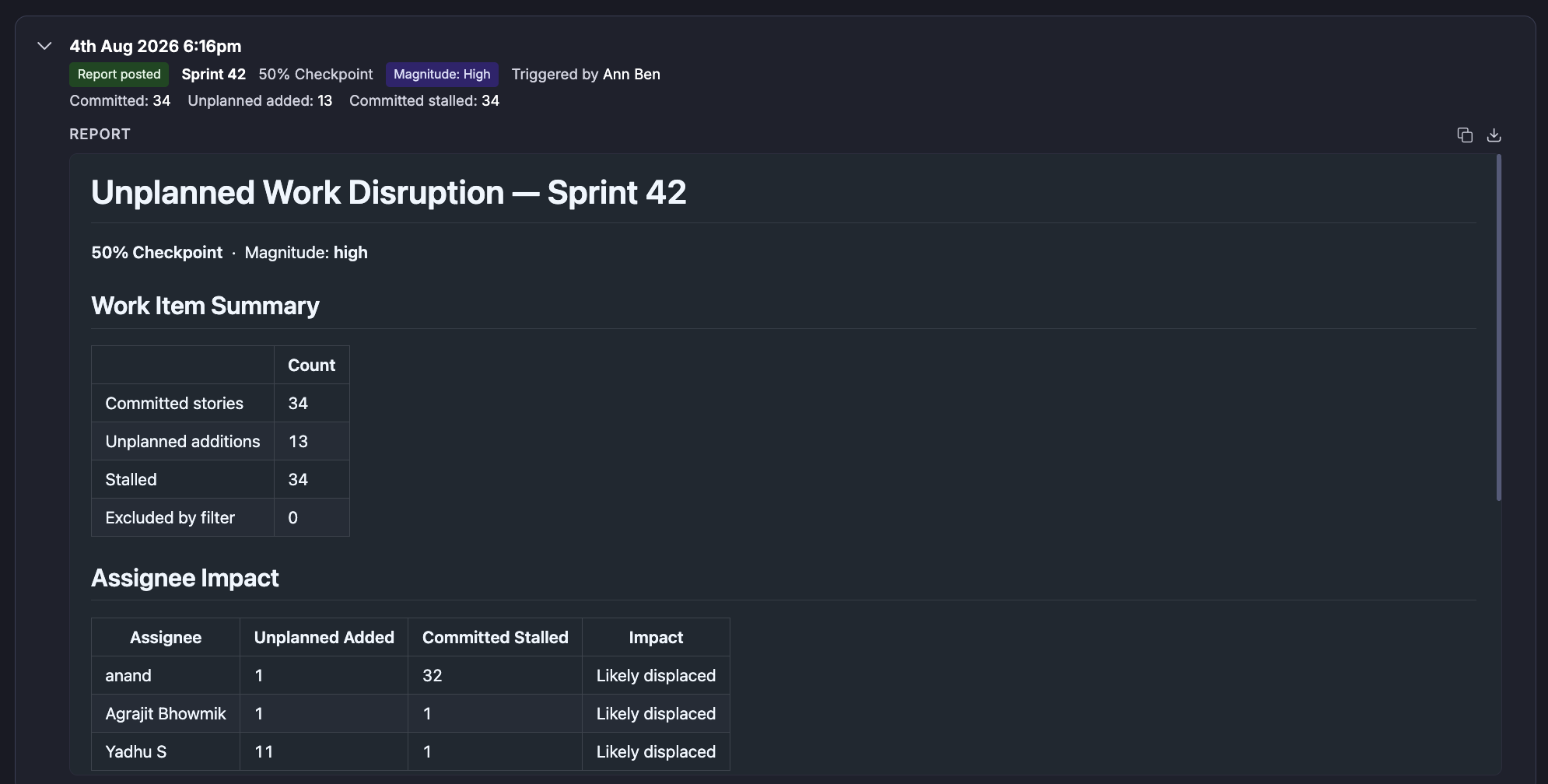
The report provides both the disruption assessment and the context needed to understand what is driving it.
The supplied example is for:
Sprint 42
50% Checkpoint
Magnitude: High
Committed: 34
Unplanned added: 13
Committed stalled: 34
Work Item Summary
The Work Item Summary provides the key counts used in the assessment.
Typical fields include:
In the supplied example:
34 committed stories
13 unplanned additions
34 stalled committed stories
0 excluded by filter
Assignee impact
The Assignee Impact section shows where unplanned additions overlap with stalled committed work.
The supplied example shows:
This view helps the Scrum Master identify where unplanned work may be competing with committed sprint work.
Understanding the summary
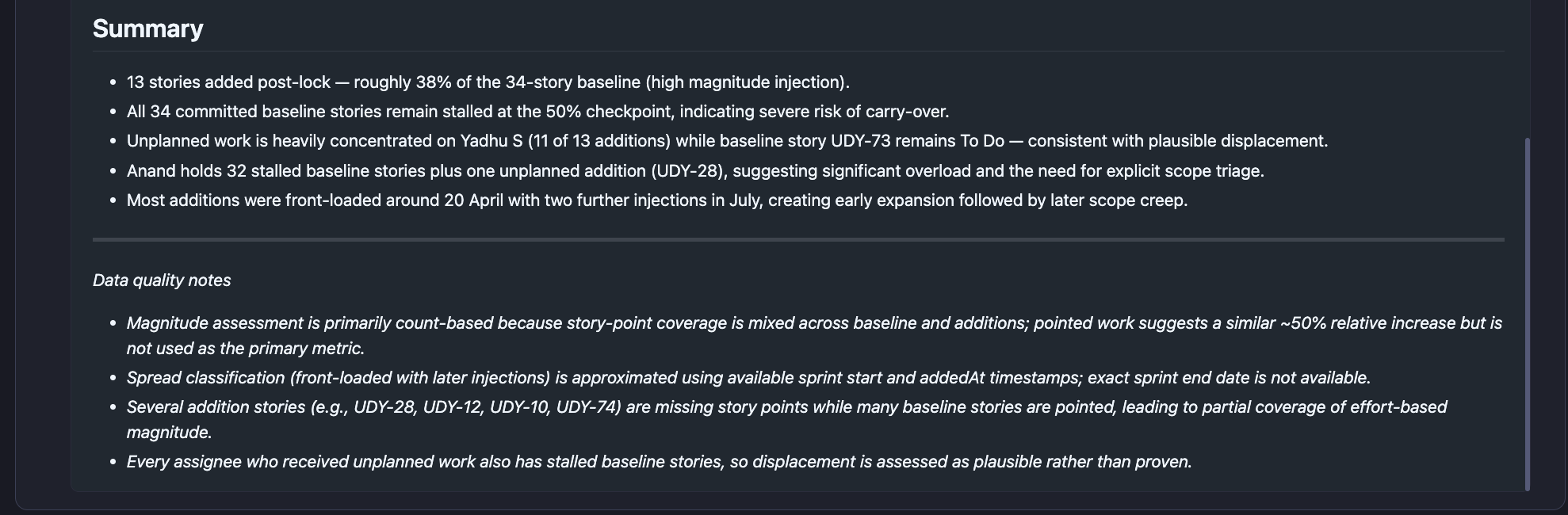
The Summary section explains the overall disruption in plain language.
The supplied Sprint 42 example highlights that:
13 stories were added after sprint lock, approximately 38% of the 34-story baseline.
All 34 committed baseline stories were stalled at the 50% checkpoint, indicating a severe carry-over risk.
Unplanned work was heavily concentrated on Yadhu S, who received 11 of the 13 additions.
Anand had 32 stalled baseline stories plus one unplanned addition, indicating significant overload and a need for scope triage.
Most additions were front-loaded, with later injections creating additional scope creep.
The summary is intended to help the Scrum Master understand the disruption pattern and decide where intervention is required.
Coverage and Data quality notes
The report includes Data quality notes or Coverage Notes when the available data limits the strength of the assessment.
The supplied example highlights several important considerations:
Magnitude may be primarily count-based when story-point coverage is mixed.
Addition timing may be approximated when exact sprint dates are unavailable.
Missing story points can limit effort-based magnitude assessment.
Dependency or displacement conclusions should be treated as plausible when the available data cannot prove causality.
These notes are important because the recommendation should be interpreted in the context of the quality and completeness of the underlying sprint data.
Understanding the Disruption Assessment
The Unplanned Work Tracker is intended to support a Scrum Master's decision-making; it does not replace judgment.
A high disruption assessment can result from combinations such as:
High volume of additions + stalled committed work + assignee collision
while another sprint may have a similar number of additions but lower disruption if committed work is progressing normally.
The report therefore provides both the magnitude assessment and the evidence behind it.
Skip conditions
The agent may skip a run when required context is unavailable or the configured execution conditions are not met.
Typical conditions include:
Zero unplanned additions is not a reason to skip. The agent can still run and report that no qualifying unplanned additions were identified.
Important boundaries
The Unplanned Work Tracker is an advisory and reporting agent.
It does not:
Modify Jira or ADO work items.
Modify sprint commitments.
Change issue status.
Change priorities.
Remove unplanned work.
Move work between assignees.
Add or remove items from a sprint.
Resolve dependencies.
Automatically change sprint decisions.
The Scrum Master and engineering team remain responsible for deciding what action to take based on the report.
Summary
Unplanned Work Tracker gives Scrum Masters an evidence-based view of how unplanned work is affecting an active sprint.
It evaluates:
Committed baseline
Unplanned additions
Stalled committed work
Assignee collision
Accumulation pattern
Disruption magnitude
The result is not simply an additions report. It is a decision-support report that explains how unplanned work is affecting sprint commitments, where disruption is concentrated, and where intervention may be required.
Was this article helpful?
That’s Great!
Thank you for your feedback
Sorry! We couldn't be helpful
Thank you for your feedback
Feedback sent
We appreciate your effort and will try to fix the article