Workspace set-up allows Workspace Administrators to configure the workspace, manage users and their access, and view the usage limits associated with the workspace.
The workspace setup consists of three areas:
Workspace Details
Users
Cost Caps
1. Workspace Details
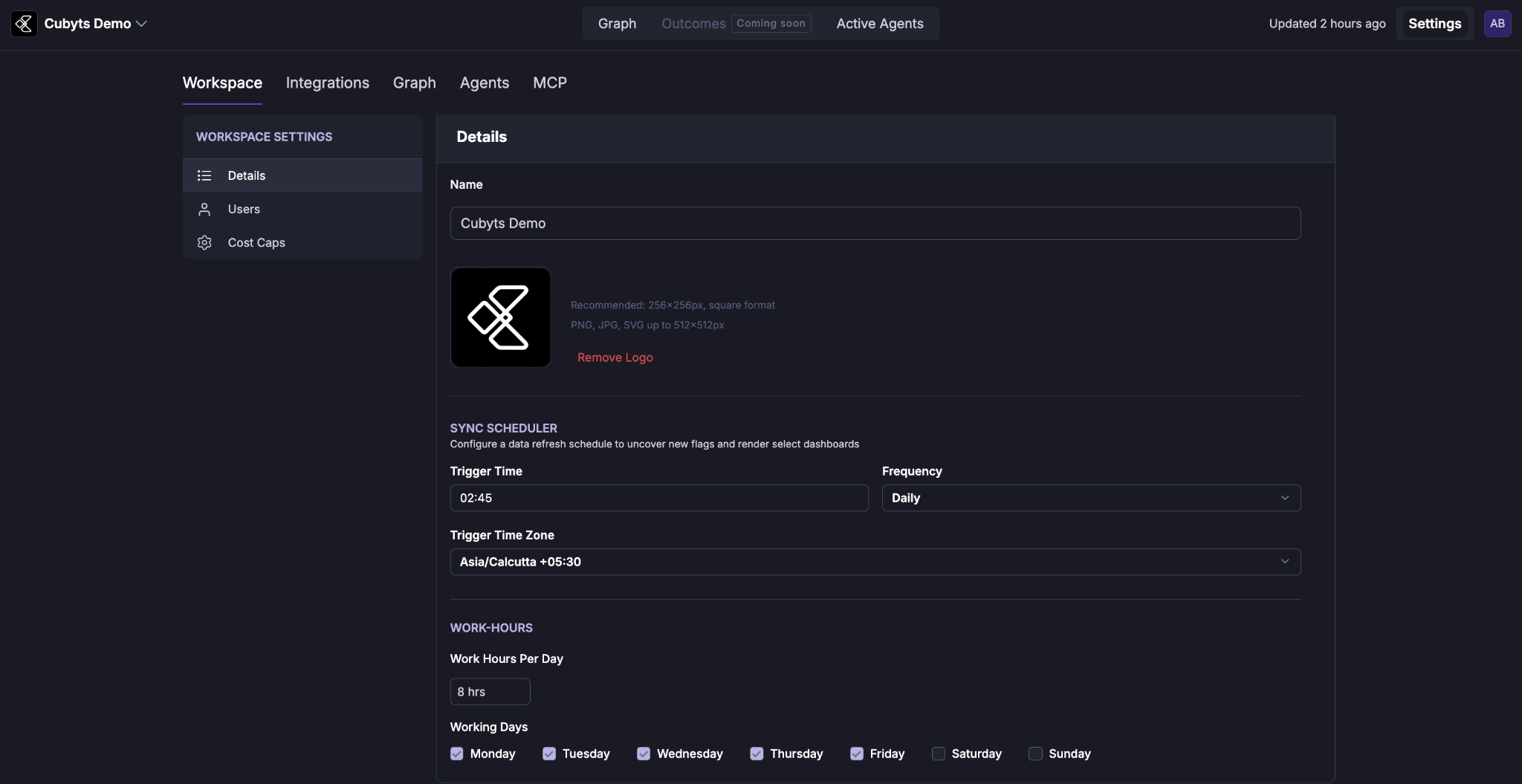
The Details section allows the administrator to configure the basic identity and working parameters of the workspace.
Workspace Name
The workspace name identifies the workspace across the Cubyts application.
By default, the workspace is named after the person who requested the workspace. The administrator can change this to an appropriate name based on the team, project, product, or organization using the workspace.
Workspace Logo
A logo can be added to personalize the workspace and make it easier to identify.
The logo should follow the specifications displayed in the application:
Recommended size: 256 × 256 px
Format: Square
Supported formats: PNG, JPG, SVG
Maximum size: 512 × 512 px
The administrator can remove an existing logo and replace it with a new one.
Sync Scheduler
The Sync Scheduler determines when Cubyts refreshes data from the connected business and productivity systems.
The scheduled refresh allows Cubyts to process newly available information, uncover new flags, and update relevant dashboards.
The administrator can configure:
Trigger Time: The time at which the scheduled data refresh begins.
Frequency: How often the data refresh runs, such as daily.
Trigger Time Zone: The time zone in which the configured trigger time is interpreted.
Work Hours
The Work Hours configuration defines the working schedule of the people who will be invited to the workspace.
This information helps Cubyts understand the available working capacity when evaluating delivery and planning-related information.
Work Hours Per Day
Specifies the number of working hours available per person on a typical working day.
For example, 8 hours can be configured for a standard workday.
Working Days
Specifies the days on which the team is expected to work.
The administrator can select the applicable working days from Monday through Sunday.
For example, a standard working schedule can be configured as Monday–Friday, with Saturday and Sunday treated as non-working days.
2. Users
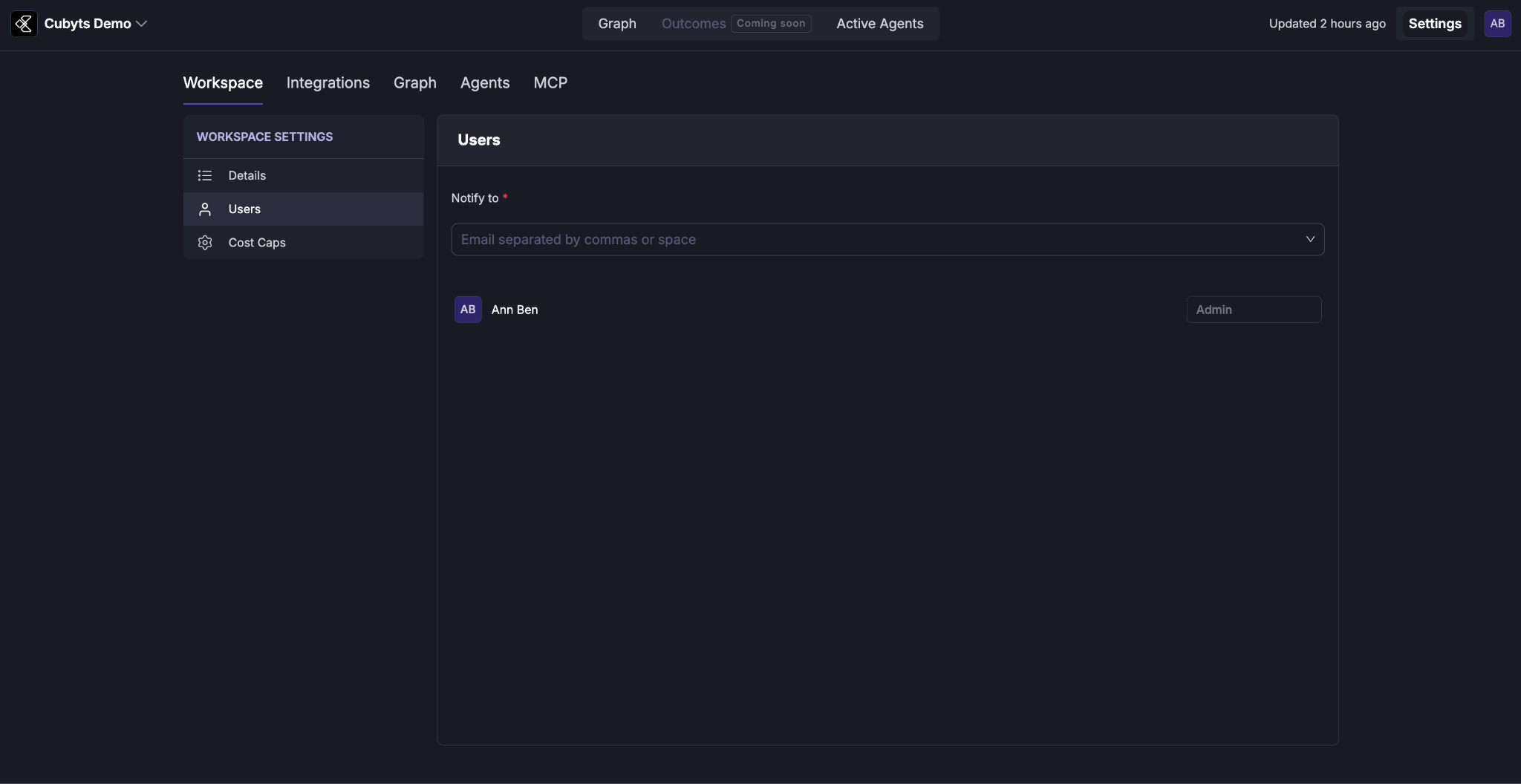
The Users section allows workspace administrators to invite users, assign roles, and manage access to the workspace.
Invite Users
Users can be invited to the workspace using their corporate email address.
Multiple users can be invited by entering multiple email addresses, separated by commas or spaces.
Assign User Roles
Each user is assigned a role that determines the level of access they have within the workspace.
The available roles are:
Admin
An Admin has complete access to the workspace.
Admin access includes:
Workspace set-up
Integration set-up
Graph set-up
Agent set-up
Access to agent outputs
Access to Cubyts MCP tools from supported coding tools such as Claude Code, Cursor, and similar tools
User management, including changing user roles and removing users
Viewer
A Viewer has access to the agents assigned to them.
Viewer access includes:
Access to assigned agent outputs
Access to Cubyts MCP tools from supported coding tools such as Claude Code, Cursor, and similar tools
No access to workspace or platform configuration
Developer
A Developer primarily accesses Cubyts capabilities through MCP-enabled coding tools.
Developer access includes:
Access to Cubyts MCP tools from supported coding tools such as Claude Code, Cursor, and similar tools
No access to workspace configuration
No access to agent outputs through the Cubyts application
RBAC
Access within the workspace is controlled through role-based access control (RBAC). A user's assigned role determines the capabilities and resources available to them.
Manage Users
Workspace administrators can manage existing users from the Users section.
Administrators can:
Change a user's assigned role.
Remove a user from the workspace.
2. Cost cap
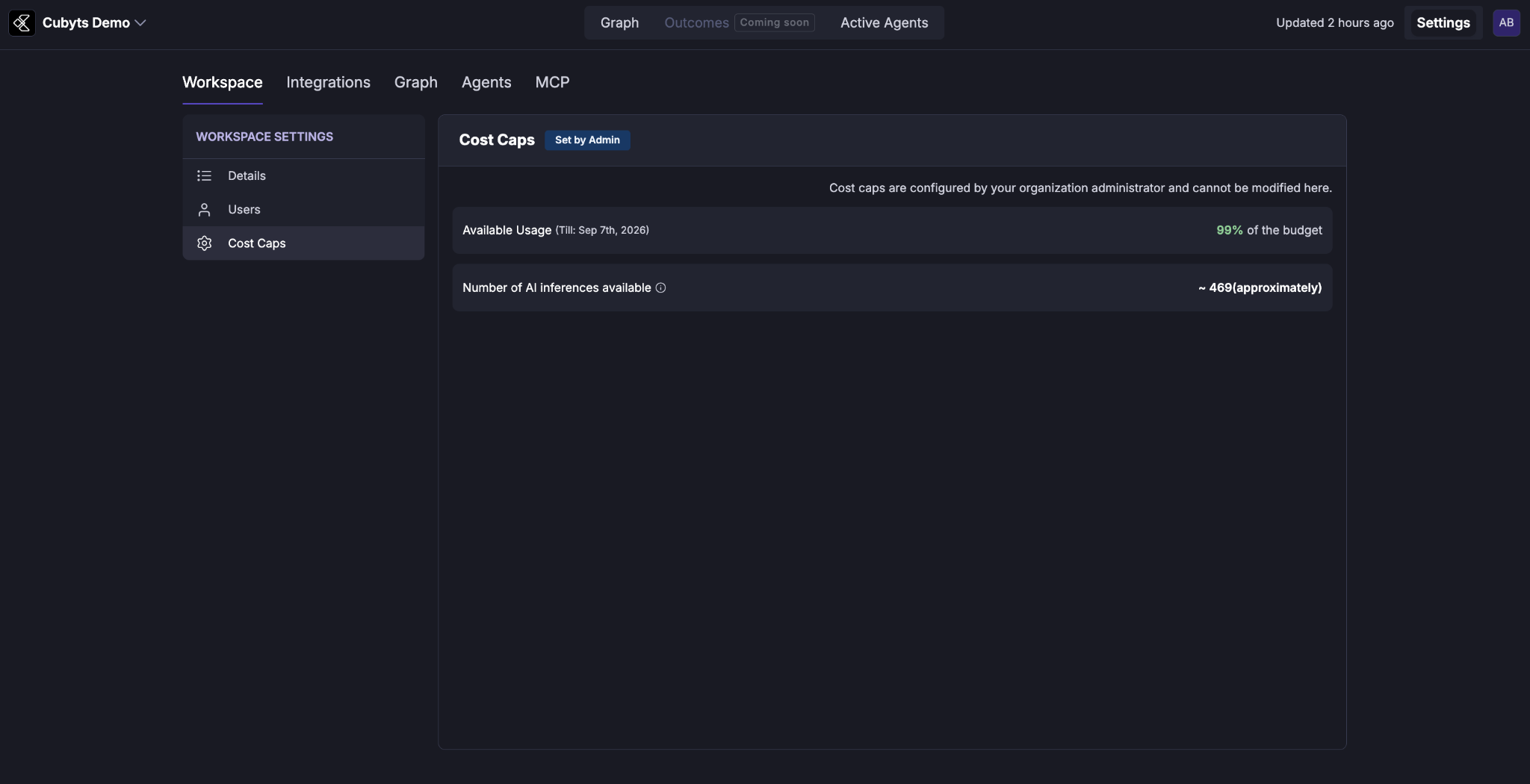
The Cost Caps section provides visibility into the AI usage budget allocated to the workspace.
The cost cap is assigned to the workspace by:
Workspace Administrator for a hosted implementation.
Cubyts for a SaaS implementation.
The cost cap cannot be modified from the workspace settings.
Available Usage
Cubyts displays the remaining available budget as a percentage based on the assigned cost cap.
This provides administrators with visibility into how much of the allocated AI usage budget remains available.
AI Inferences Available
Cubyts also displays the approximate number of AI inferences that can be performed using the remaining budget.
The number is an estimate and is based on the remaining available budget.
Access to Workspace Set-up
Note: Workspace set-up is accessible only to Workspace Administrators. Only administrators can view and modify the workspace configuration across all three setup categories: Workspace Details, Users, and Cost Caps.
The access restrictions for individual capabilities within the workspace are further governed by the role-based access control (RBAC) described in the Users section.
Was this article helpful?
That’s Great!
Thank you for your feedback
Sorry! We couldn't be helpful
Thank you for your feedback
Feedback sent
We appreciate your effort and will try to fix the article