This article guides you through the steps required to successfully integrate Jira Software with Cubyts and configure the integration for your workspace.
1. Access the Jira Integration
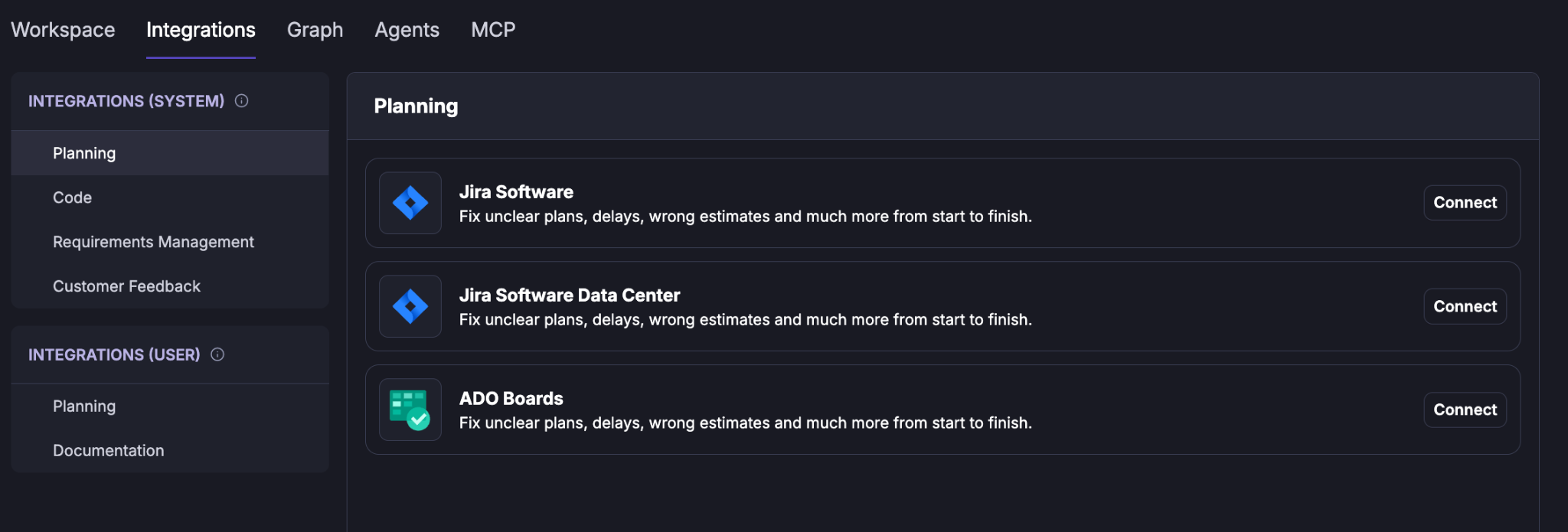
Navigate to the Integrations panel in Cubyts.
Select Jira.
The Jira integration page will open. Follow the configuration steps described below.
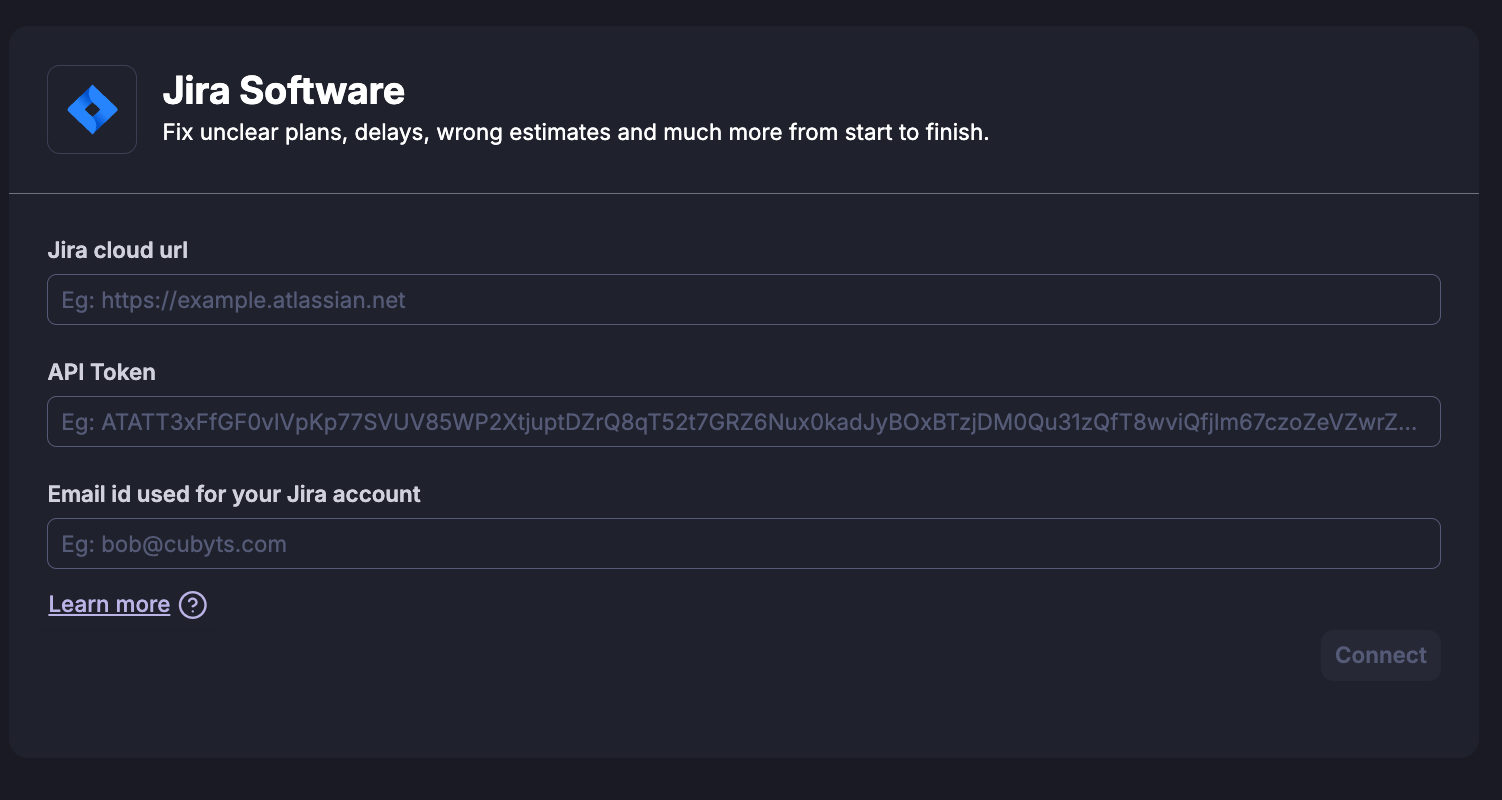
2. Add the Jira Base URL
Enter the base URL of your Jira instance.
For example:
https://company.atlassian.net
3. Create and Add the Jira API Token
Cubyts uses a Jira API token to authenticate with Jira.
Open the Jira API token management page:
https://id.atlassian.com/manage-profile/security/api-tokensClick Create API token.
Provide a name for the token.
Create the token.
Copy the generated token and enter it in the corresponding field in Cubyts.
Important: Store the API token securely. Do not share the token with other users.
4. Add Your Jira Email ID
Enter the email address associated with the Jira account used to create the API token.
The email ID and API token together are used by Cubyts to authenticate with Jira.
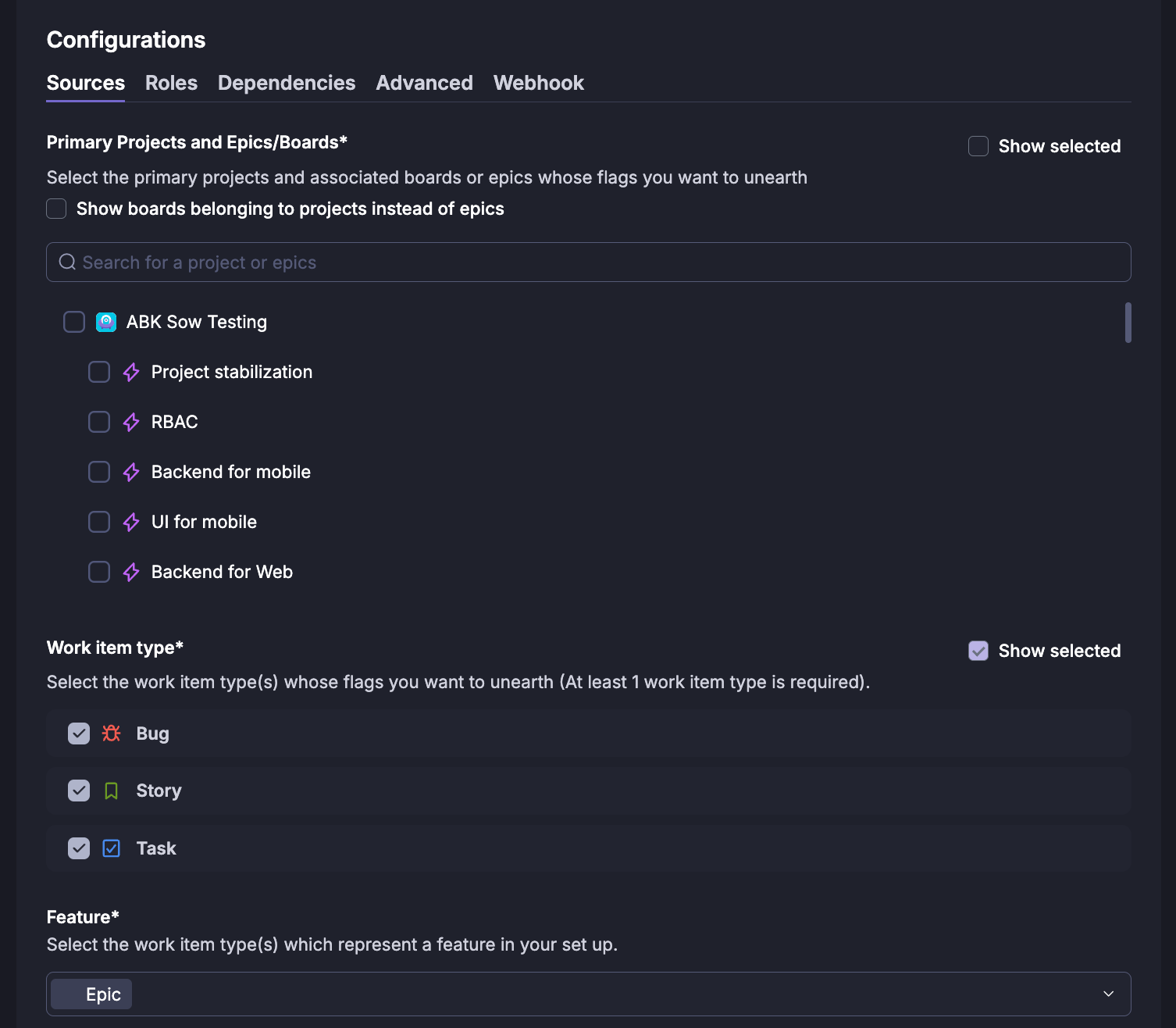
5. Configure Basic Conditions
The following configuration is mandatory.
5.1 Select Projects and Epics or Boards
Select the projects and epics or boards that should be considered for the workspace.
Only the selected projects and epics will be included within the configured scope of the integration.
5.2 Select Issue Types
Select the Jira issue types that should be analyzed by Cubyts.
5.3 Define Features
Configure the issue types or conditions that represent features in your Jira setup.
This helps Cubyts correctly classify and analyze features within your organization's Jira structure.
6. Configure Roles (Optional)
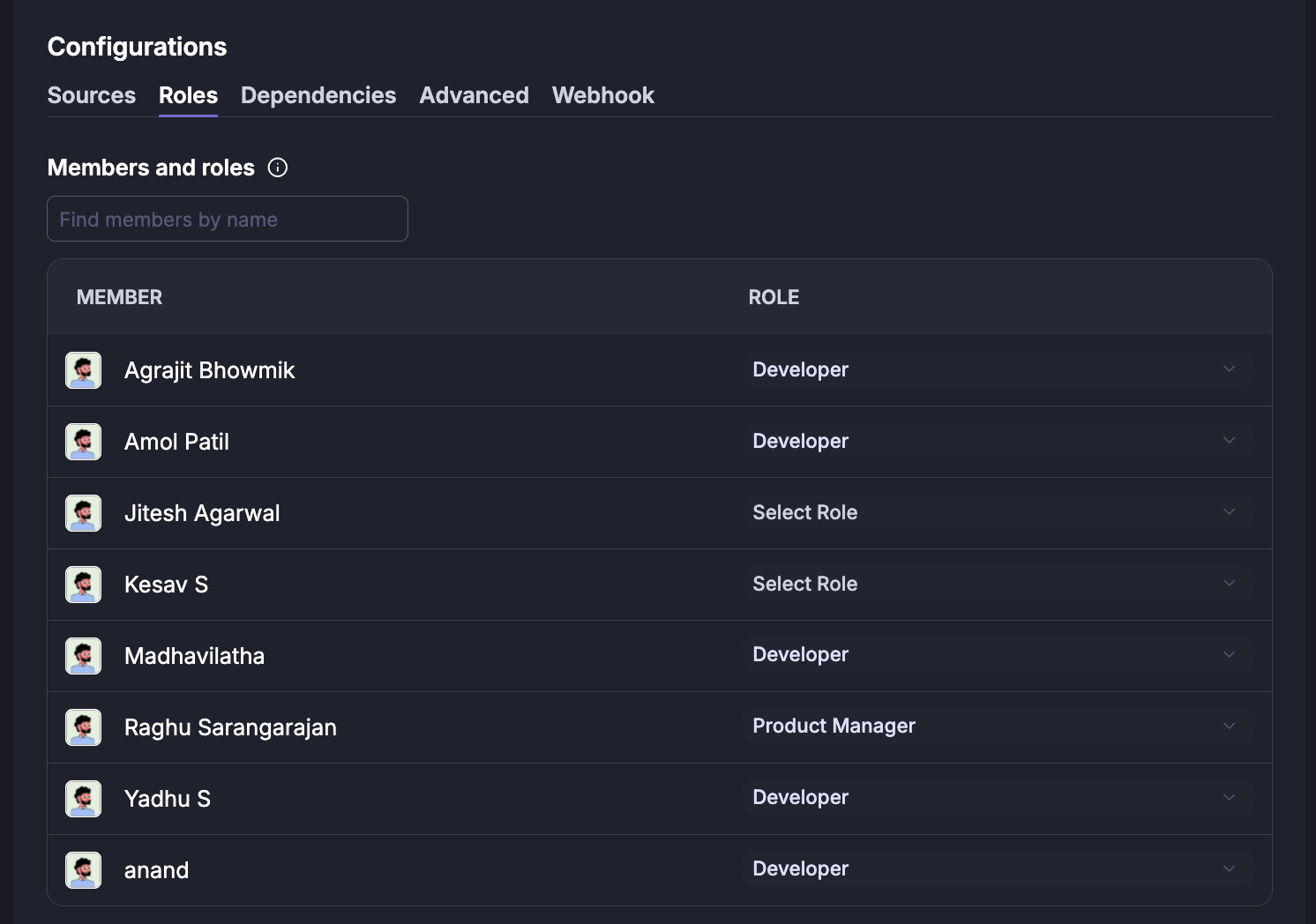
Cubyts identifies users associated with the configured Jira instance based on their authorization and activity.
Examples include users who:
Create issues
Are assigned to issues
Have permission to comment on issues
Have permission to transition issues
Select the appropriate role for these users to help Cubyts correctly classify Jira activities and responsibilities.
7. Configure Dependencies (Optional)
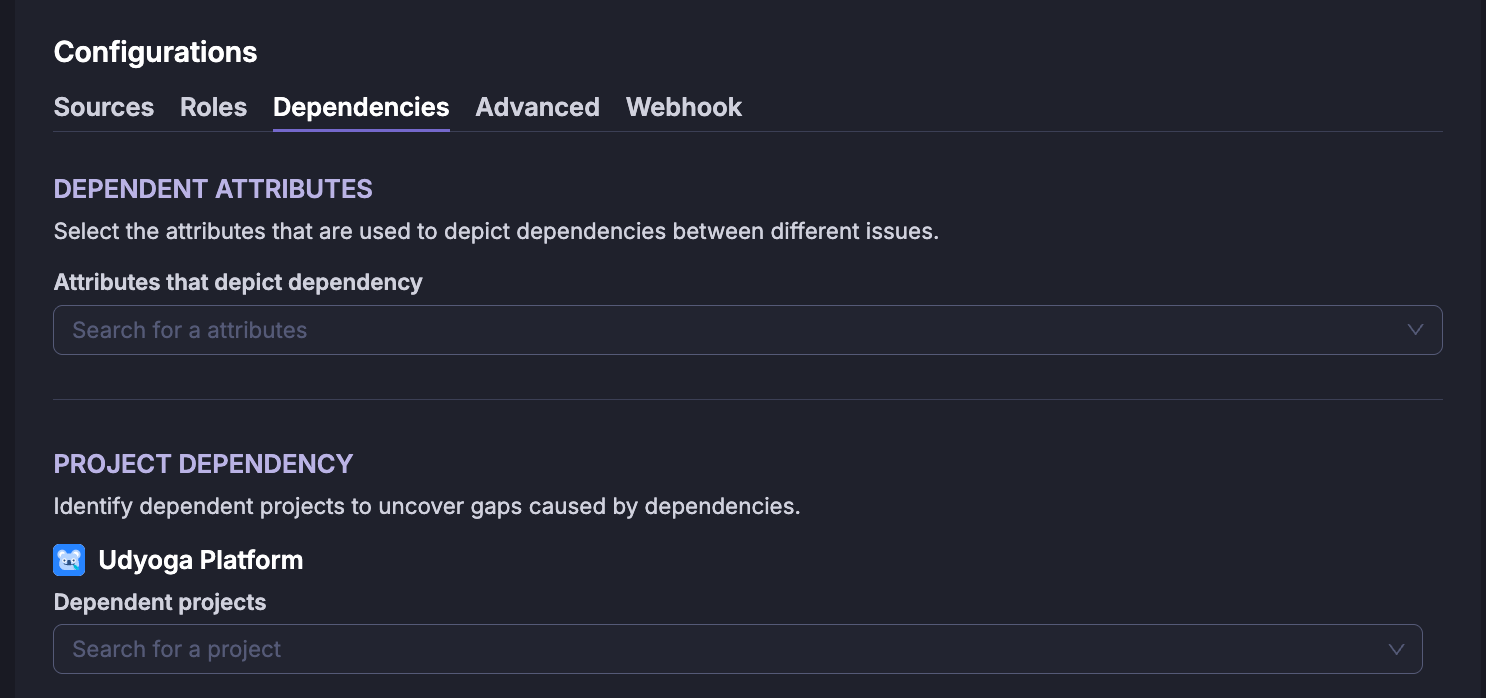
Dependency configuration allows Cubyts to identify relationships between issues and projects that may not be represented using standard Jira issue links.
7.1 Configure Dependency Attributes
Identify the Jira attributes that represent dependencies.
These attributes can be:
Standard Jira attributes
Custom Jira attributes
For example, an attribute may be used to identify or reference an issue from another project.
This configuration is particularly useful for organizations that do not use Jira's standard issue-link mechanism to represent dependencies.
7.2 Identify Dependent Projects
Identify the projects that are related to the projects configured in the Sources tab.
These projects are used by Cubyts to establish cross-project dependencies.
8. Map Jira Priorities to Cubyts Priorities
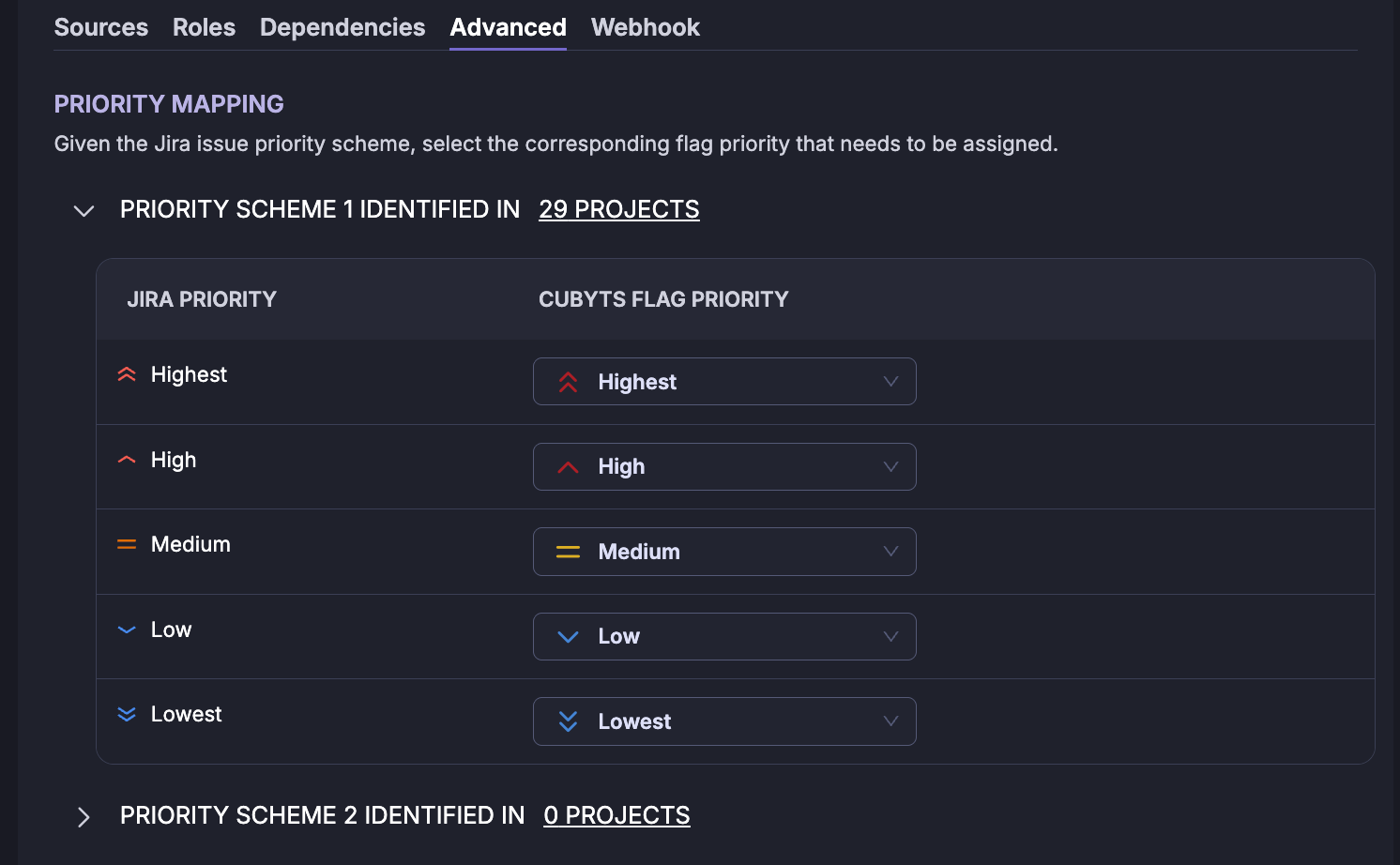
Cubyts automatically identifies all unique Jira priority schemes configured for the selected projects and recommends a corresponding mapping to Cubyts priorities.
For each priority scheme:
Review the priority mappings recommended by Cubyts.
Override the recommended mapping if required.
Save the final mapping.
This configuration enables Cubyts to prioritize flags based on the priority assigned to the corresponding Jira issue. This helps teams plan and sequence flag resolution effectively.
9. Identify Project Types (Optional)
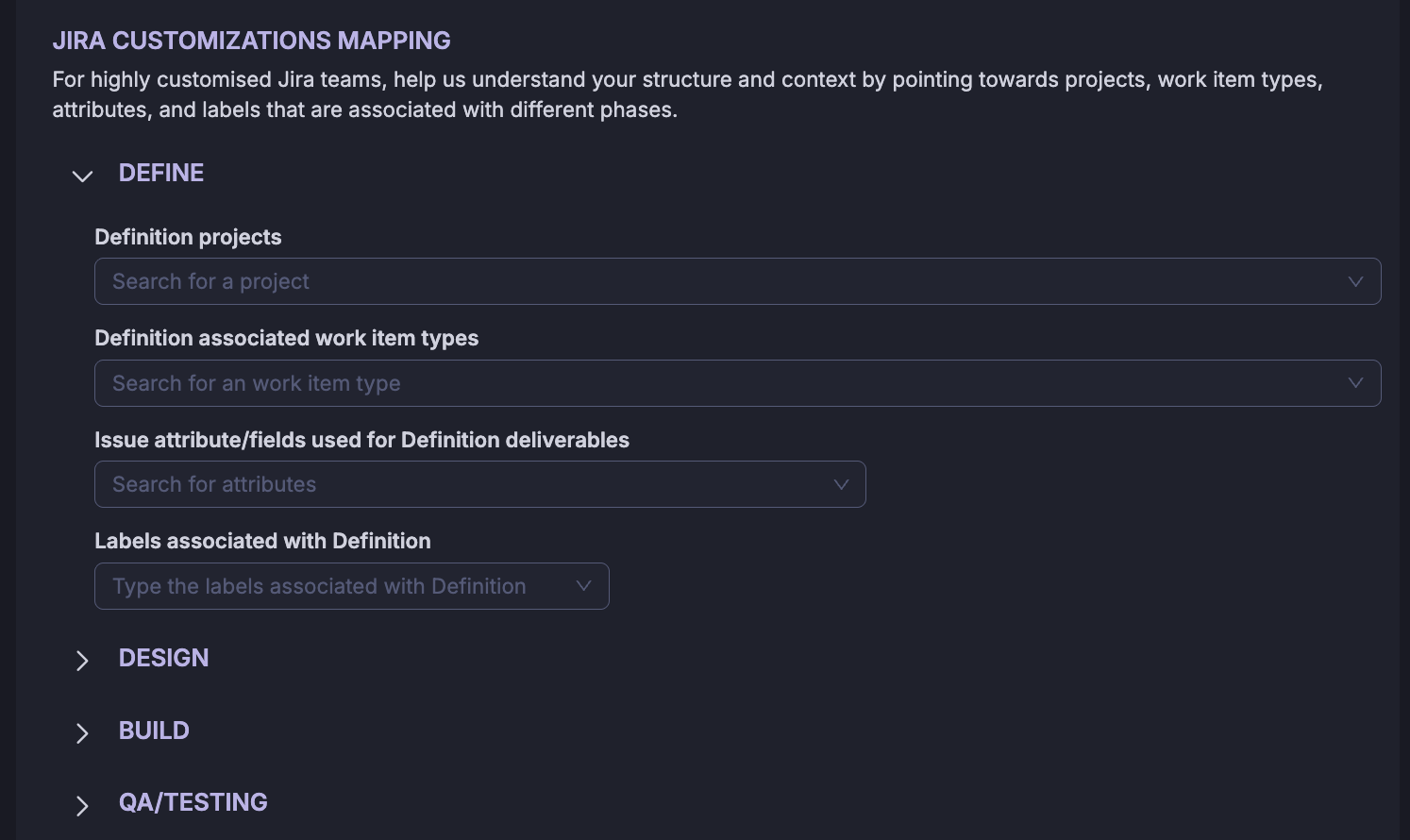
This configuration is intended for organizations with highly customized Jira environments where different projects are used for different types of work.
For example:
One project may be used for UX/UI design.
Another project may be used for product management.
A separate project may be used for engineering.
9.1 Identify Projects by Type of Work
Identify the projects used for each type of work from the projects configured in the Sources and Dependencies sections.
9.2 Identify Issue Types
Identify the dedicated issue types within those projects that represent a specific type of work.
For example, a custom issue type may represent definition or design work.
9.3 Identify Deliverable Attributes
Identify the Jira attributes that are typically used to identify or capture deliverables associated with the work.
9.4 Use Labels to Identify Work Types
Organizations using standard Jira issue types can use labels to represent different types of work.
For example, a Jira Story with the label Design may represent a UI design activity.
11. Jira Integration for Support
Jira can also be integrated with Cubyts for support-related use cases.
The integration and configuration process remains the same. However, when configuring the basic conditions, select only the relevant projects and issue types applicable to the support setup.
Configuration Summary
Was this article helpful?
That’s Great!
Thank you for your feedback
Sorry! We couldn't be helpful
Thank you for your feedback
Feedback sent
We appreciate your effort and will try to fix the article