Overview
This guide explains how to connect your Bitbucket repository with the Cubyts platform. Cubyts supports two authentication methods for Bitbucket integration:
Access Token-based integration for repository level tokens (covered in Part 1 of this guide)
Access Token-based integration for workspace level tokens (covered in Part 2 of this guide)
App Password-based integration (covered in Part 3 of this guide), this is deprecated in Bitbucket; Cubyts support this model only for legacy integrations.
Once connected, Cubyts automatically analyzes pull requests, commits, and review activity to generate actionable engineering insights.
Note: This functionality is available only for Admins of the Cubyts workspace.
Part 1: Access Token-Based Integration
Bitbucket repository access tokens provide a more granular, repository-scoped alternative to App Passwords. They allow you to define exactly which permissions Cubyts requires, making them ideal for teams that prefer tighter access control.
Prerequisites
Before setting up the access token, ensure you have Admin access to the target Bitbucket repository
Step 1: Select API token based authentication type, choose either repository or workspace token
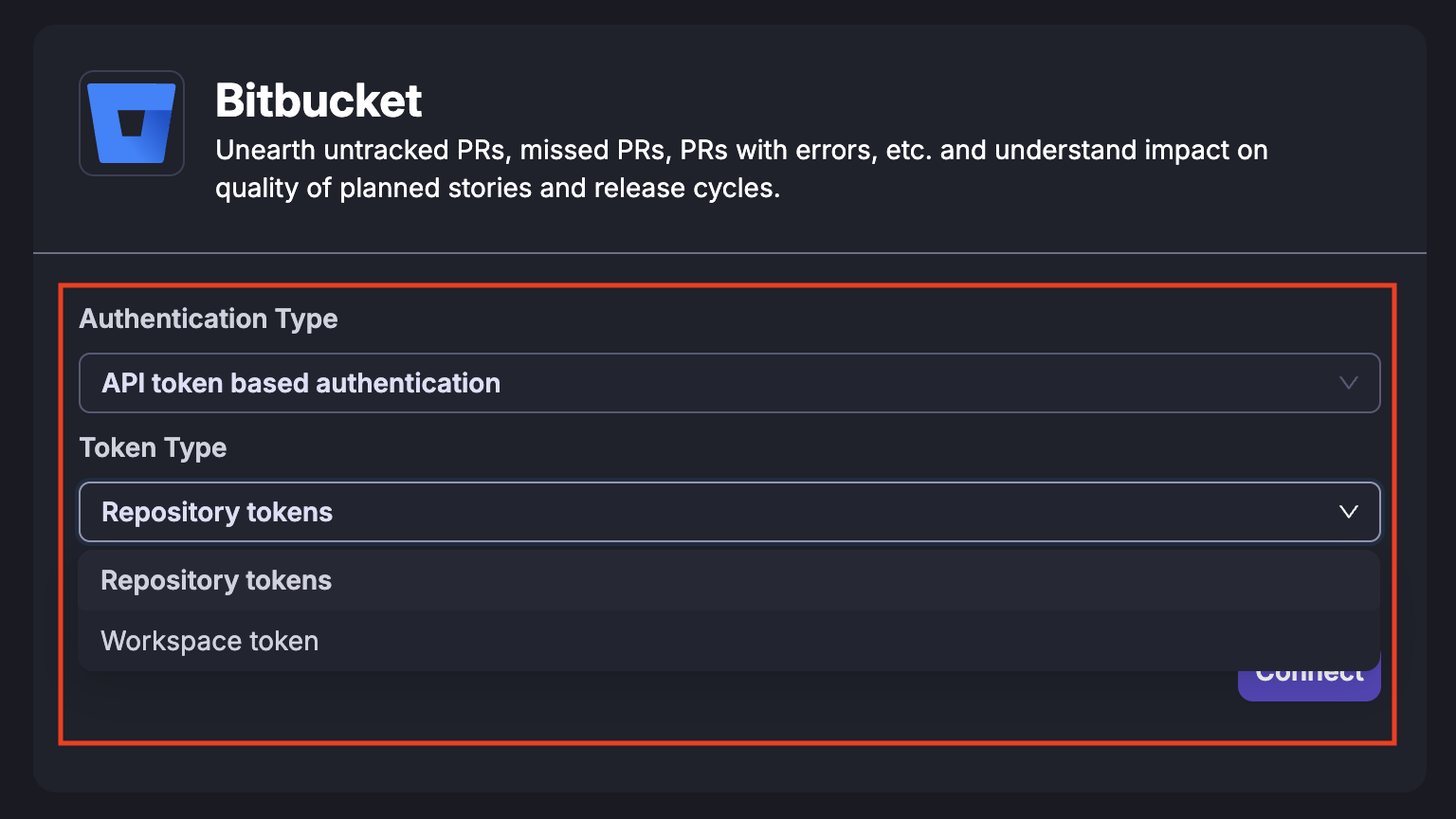
Note: You must generate your tokens in Bitbucket based on the chosen token type in Cubyts.
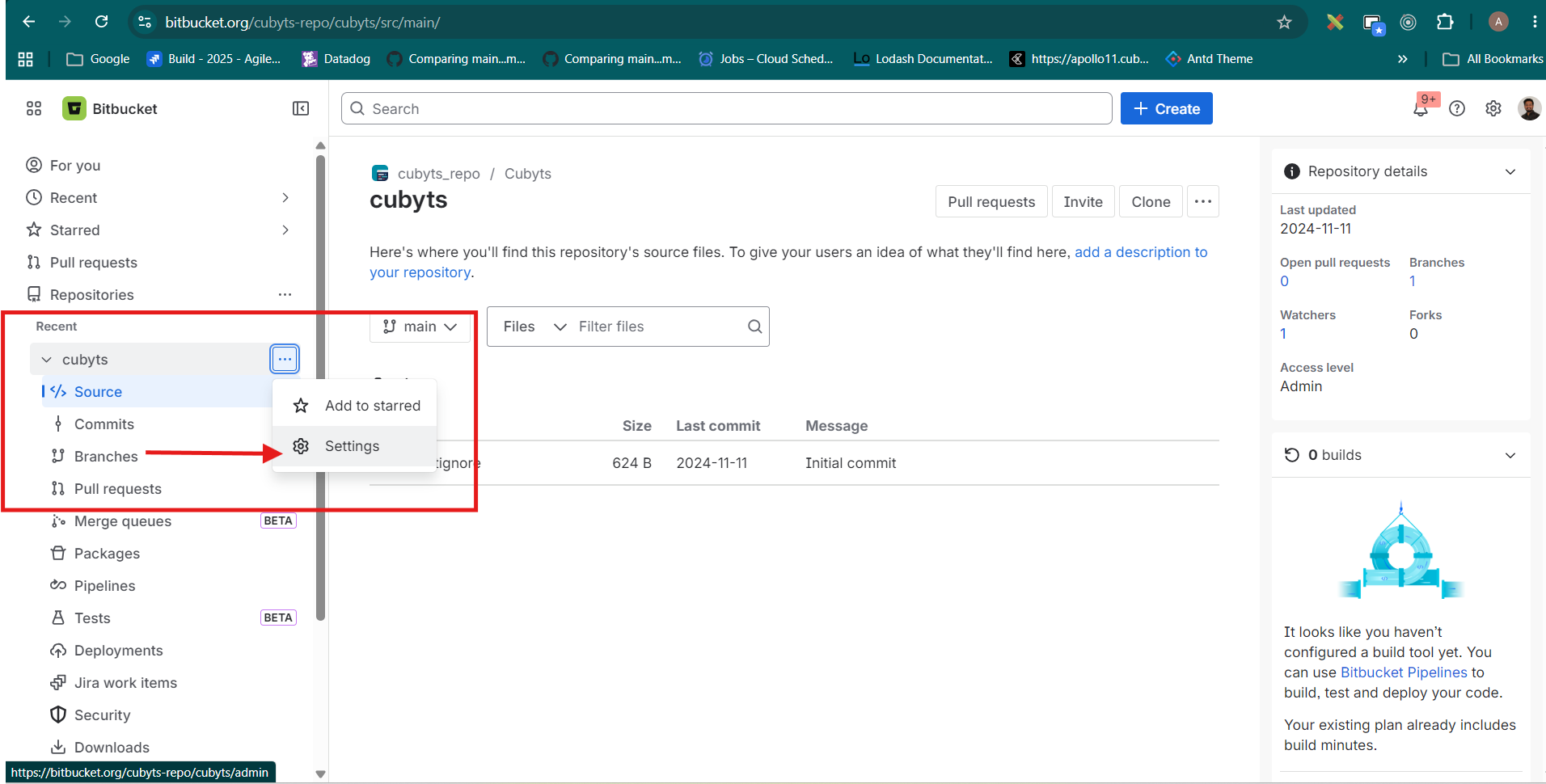
Step 2: Navigate to Repository Settings
Open your Bitbucket repository. In the left-hand sidebar, click the ••• (more options) menu next to the repository name, then select Settings.
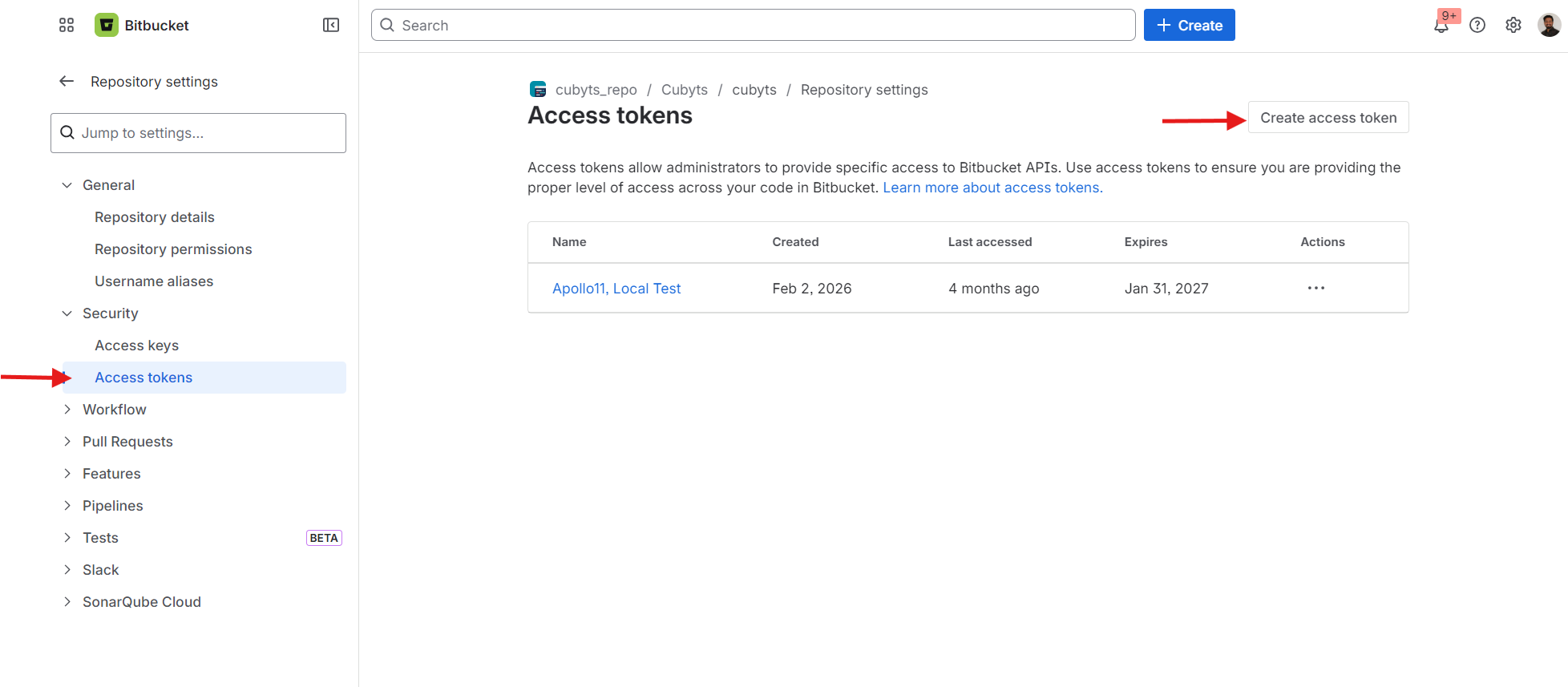
Step 2: Open Access Tokens
In the Repository settings panel, expand the Security section in the left navigation and click Access tokens.
This page lists any existing access tokens for the repository. To create a new one, click Create access token in the top-right corner.
Step 3: Configure the Access Token
Fill in the token details as follows:
Name
Enter a meaningful name so the token is easy to identify later (e.g., Cubyts Auth).
Expiry
Set an expiry date. Tokens can be valid for a maximum of 365 days as per Bitbucket workspace policy. Make a note of the expiry date so you can renew the token before it lapses.
Scopes
Scopes define what the token is allowed to do. Enable the following permissions:
Repositories — Read
Pull Requests — Read
Leave all other scopes unchecked unless specifically required by your setup.
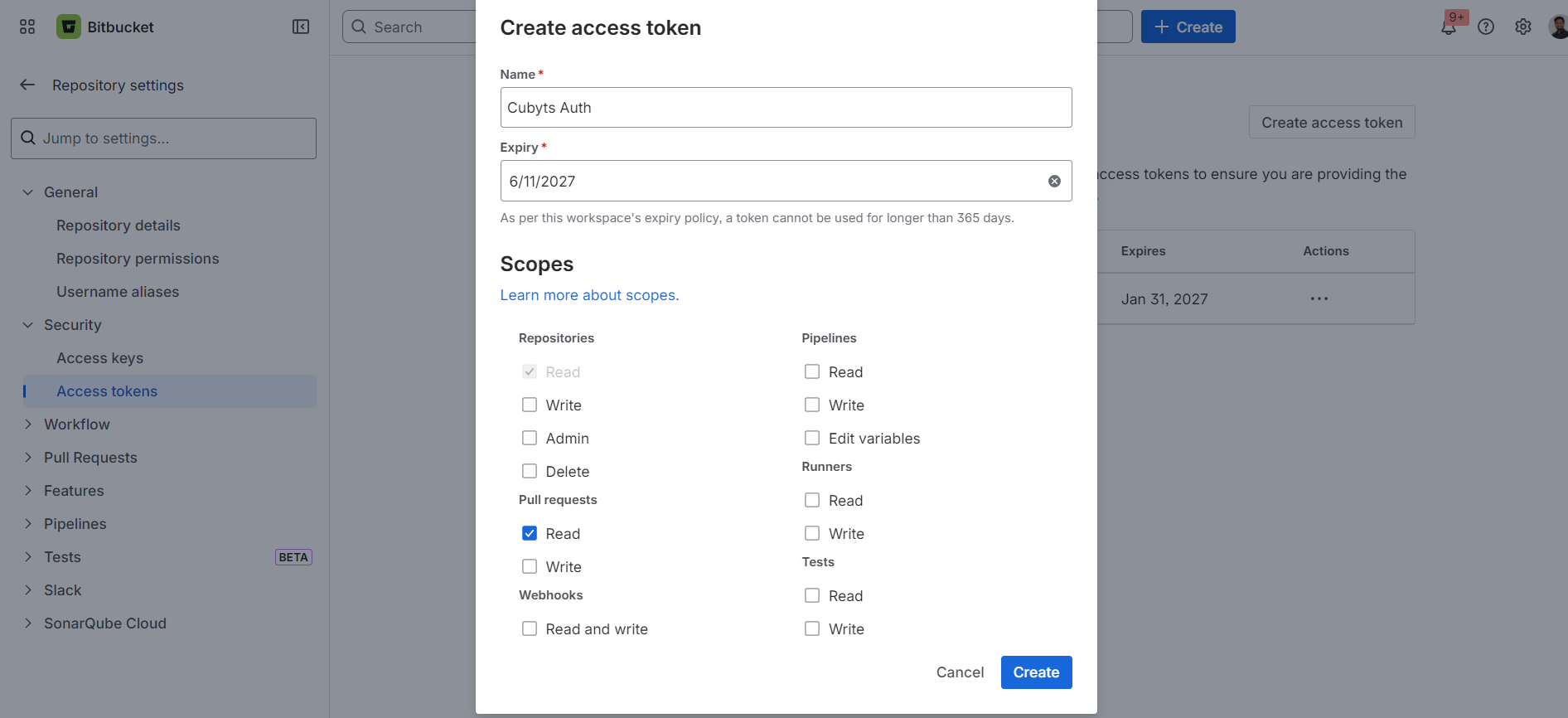
Reference configuration summary:
Step 4: Create and Save the Token
Click Create. Bitbucket will generate and display the token value once. Copy it immediately and store it in a secure location — you will not be able to view it again after leaving this page.
Note: If you lose the token, you will need to delete it and create a new one.
Step 5: Add the Token to Cubyts
Navigate to the Bitbucket integration page in Cubyts and enter the access token at the repository level. Cubyts will use this token to authenticate API calls to the connected repository.
Part 2: Access Token-Based Integration (Workspace level token)
Bitbucket workspace access tokens provide workspace level access to repositories. They allow you to define exactly which permissions Cubyts requires, making them ideal for teams that prefer tighter access control.
Prerequisites
Before setting up the access token, ensure you have:
Admin access to the target Bitbucket repository
Access to the Cubyts platform
Following are the steps to create workspace level access tokens:
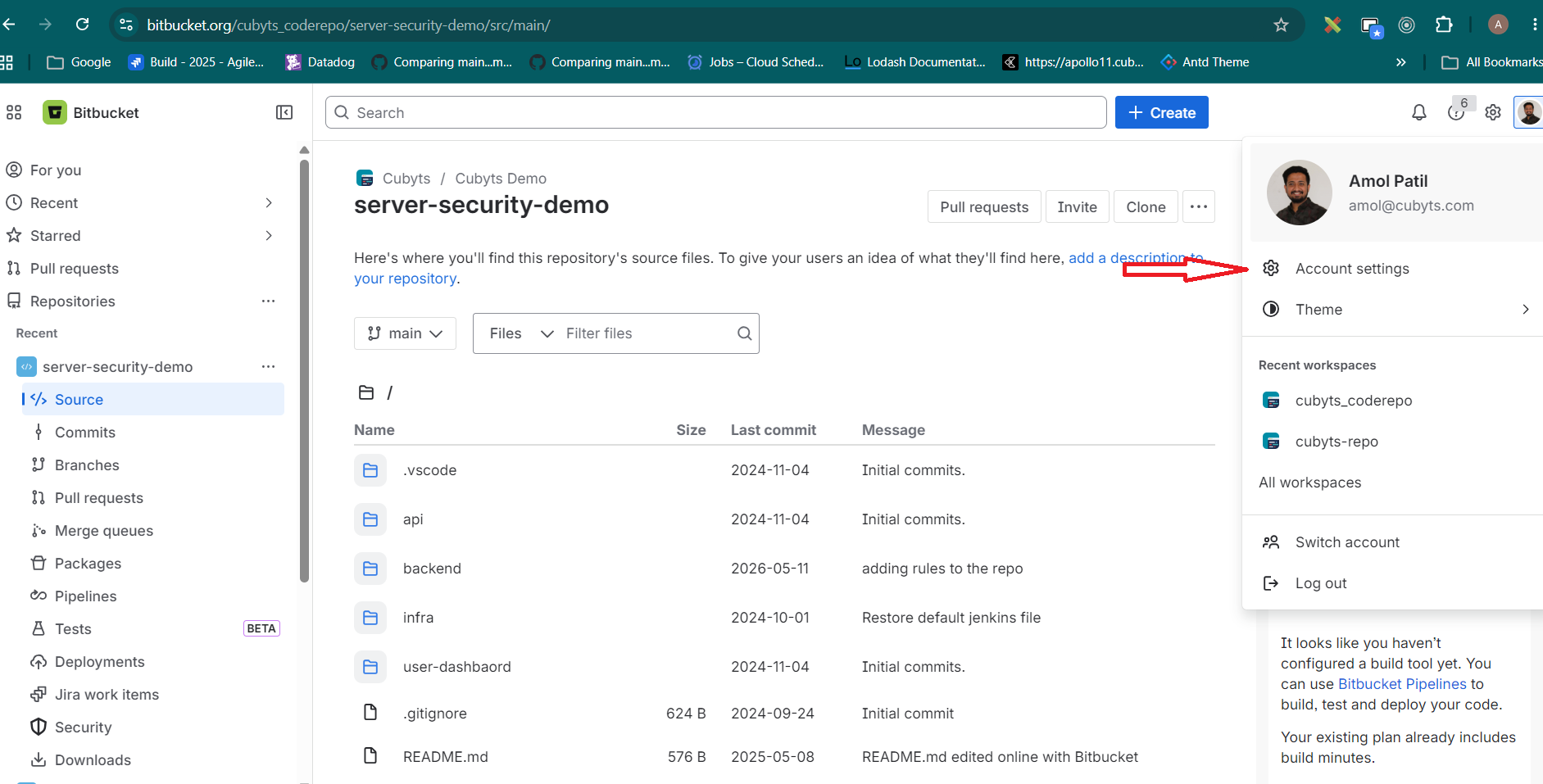
Step 1: Click your profile icon in the top-right corner and select Account settings.
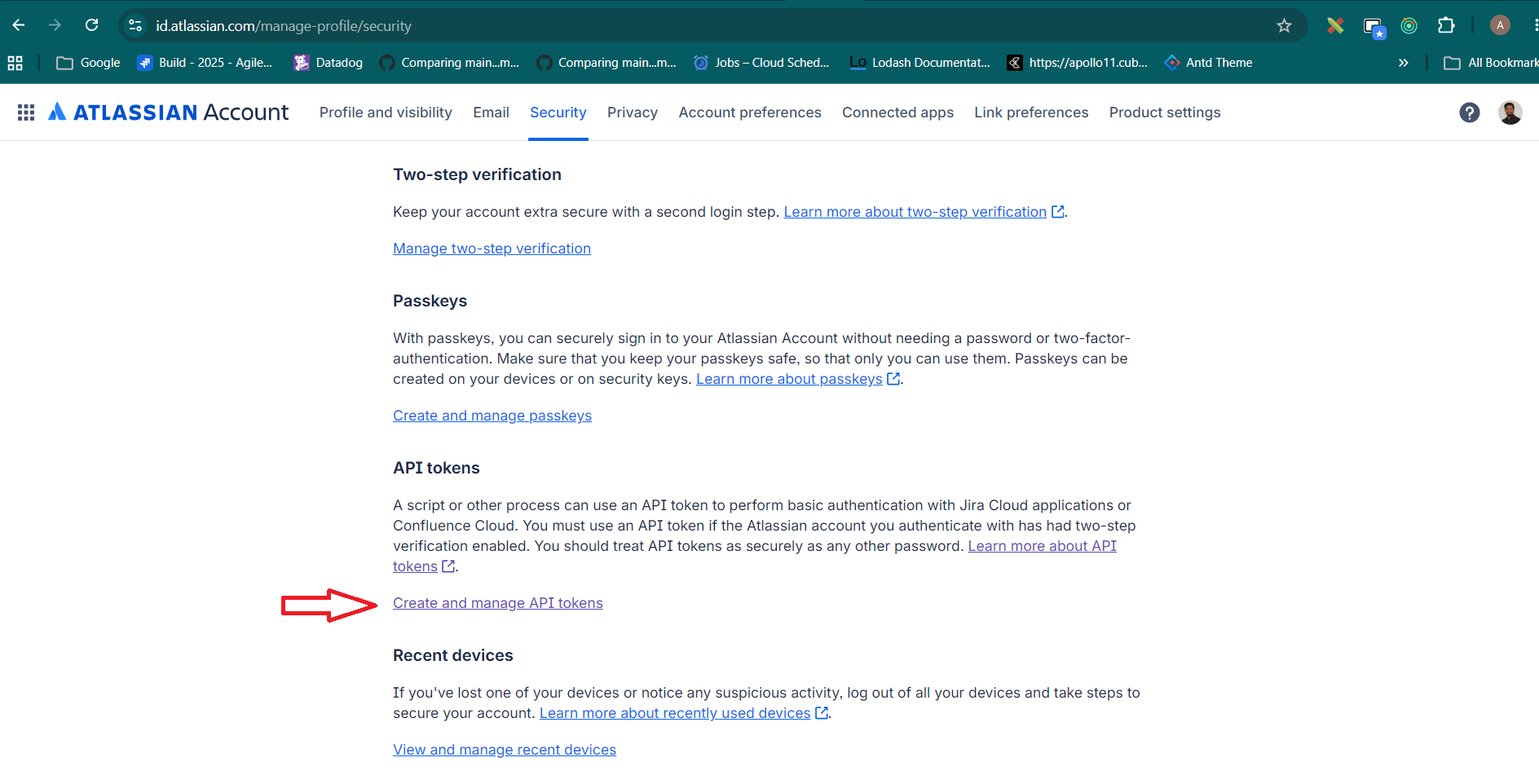
Step 2: From the top navigation menu, select the Security tab.
Step 3: Scroll to the API tokens section and click Create and manage API tokens.
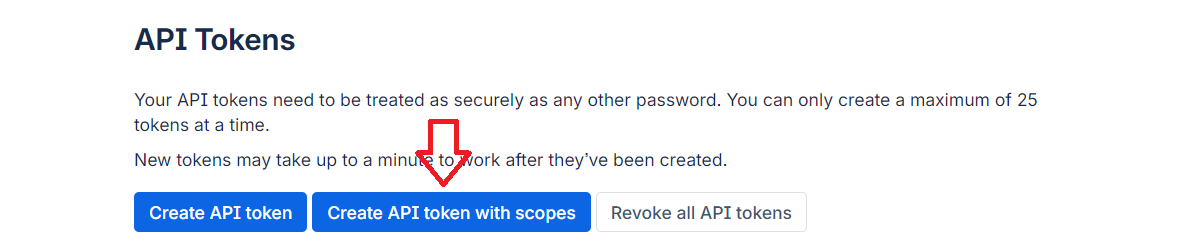
Step 4: Click Create API token with scopes.
Step 5: Enter a name for the token, set an expiry date (recommended: 1 year), and click Next.
Step 6: Select Bitbucket as the API token app and click Next.
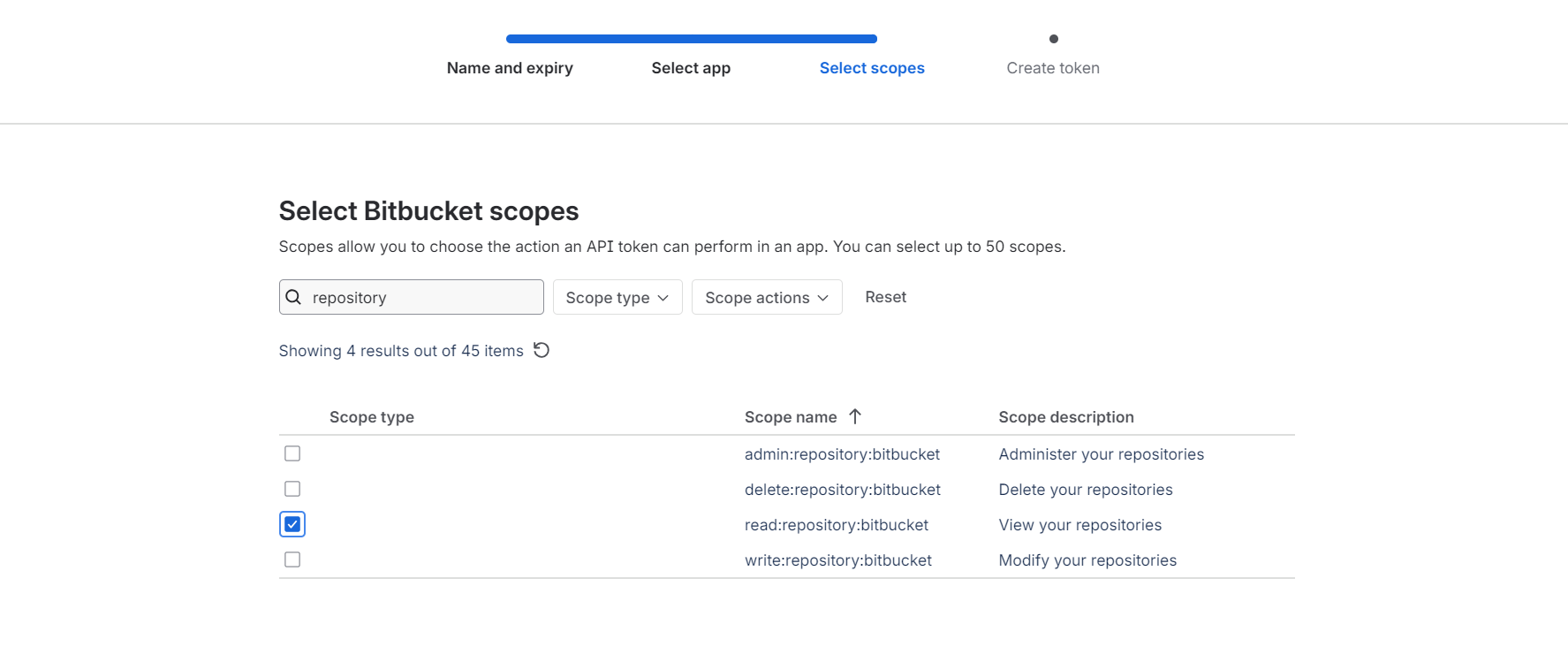
Step 7: Select the following scopes: read:repository:bitbucket, read:pullrequest:bitbucket, write:pullrequest:bitbucket.
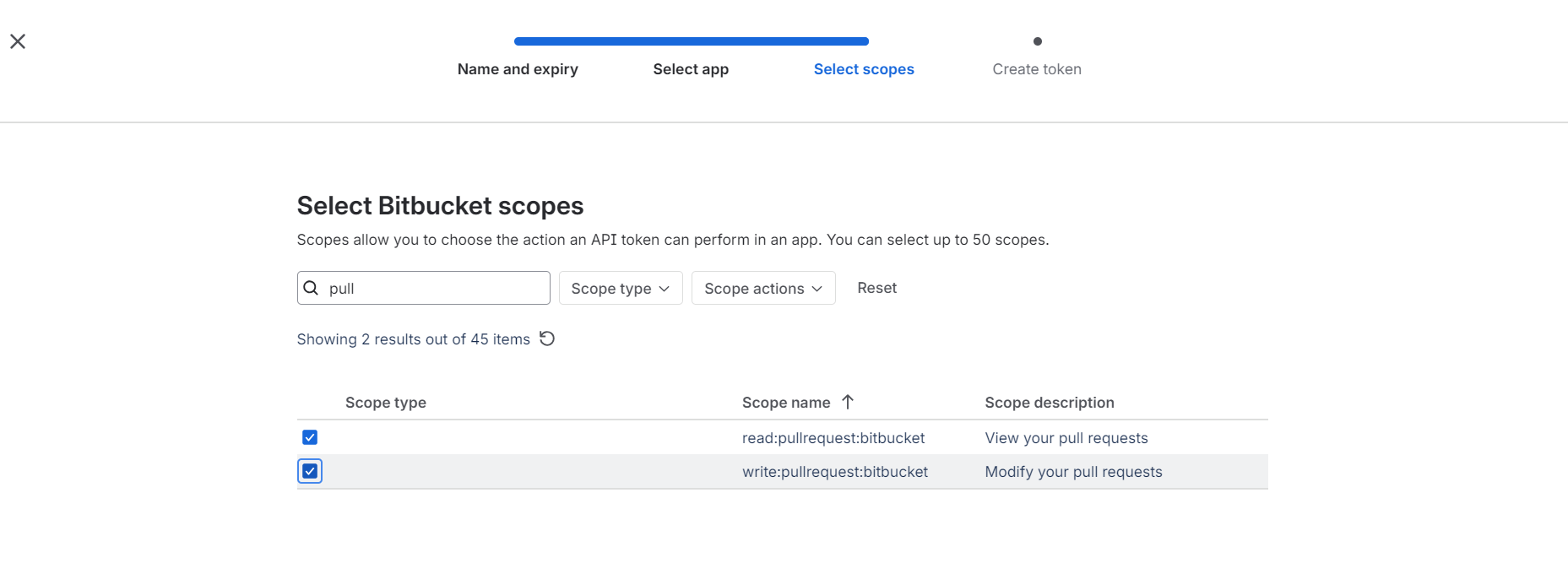
Step 8: Click create.
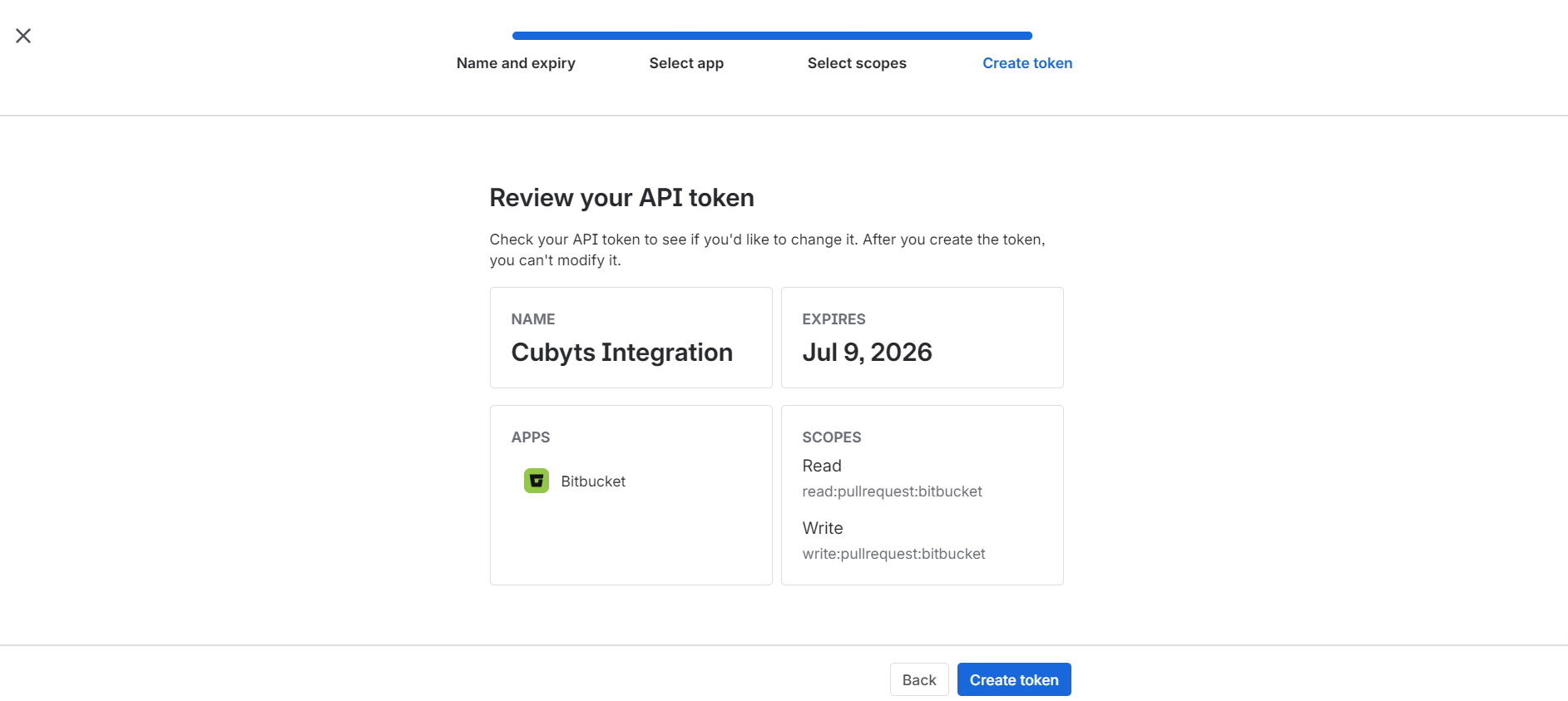
Step 9: Click Create. Bitbucket will generate and display the token value once. Copy it immediately and store it in a secure location — you will not be able to view it again after leaving this page.
Step 10: Add the Token to Cubyts, Navigate to the Bitbucket integration page in Cubyts and enter the access token at the repository level. Cubyts will use this token to authenticate API calls to the connected repository.
Part 3: App Password-Based Integration
For details on setting up App Password-based integration and configuring webhooks, please refer to the main Bitbucket integration guide.
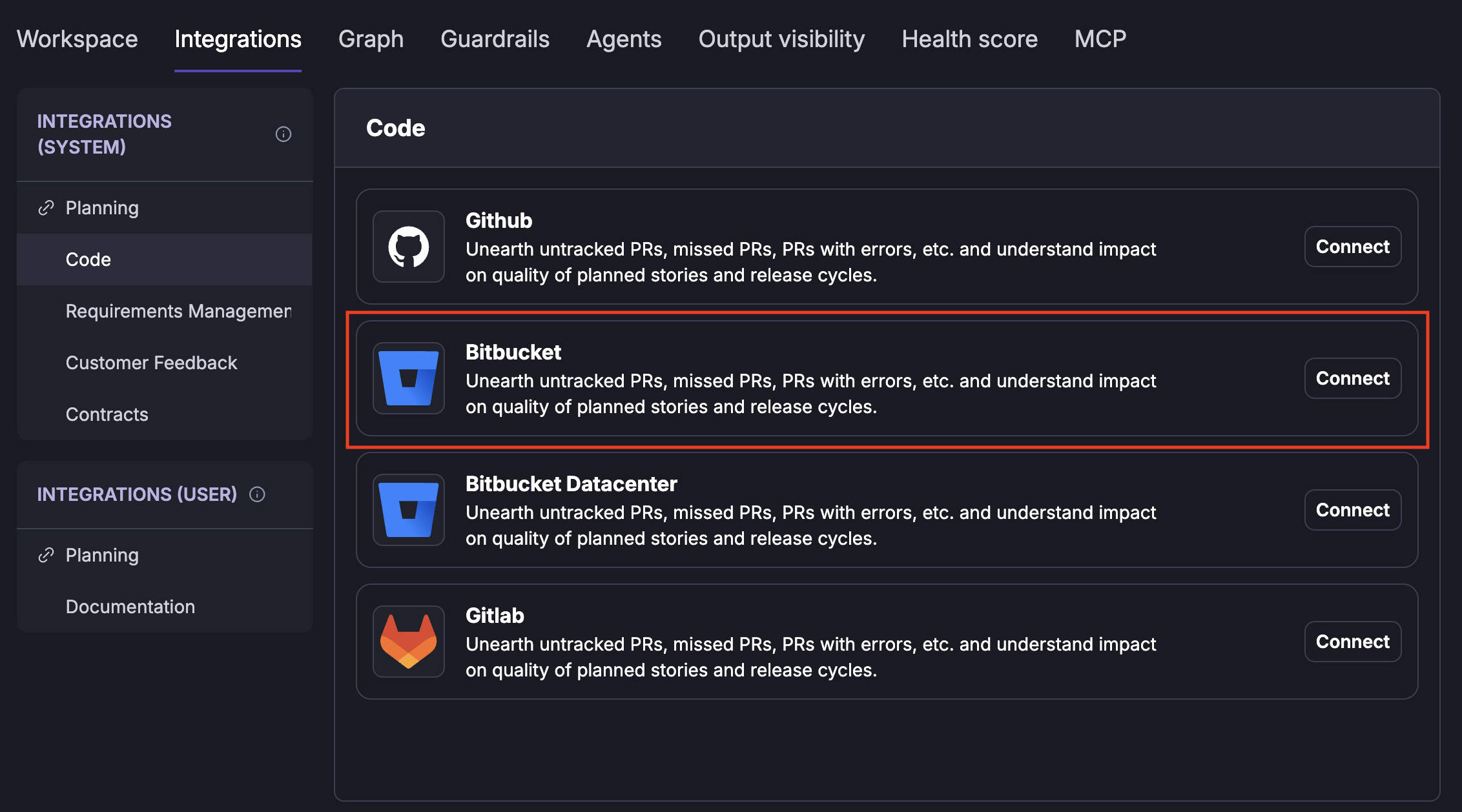
Step 1 - Go to the Bitbucket page on Cubyts to initiate integration
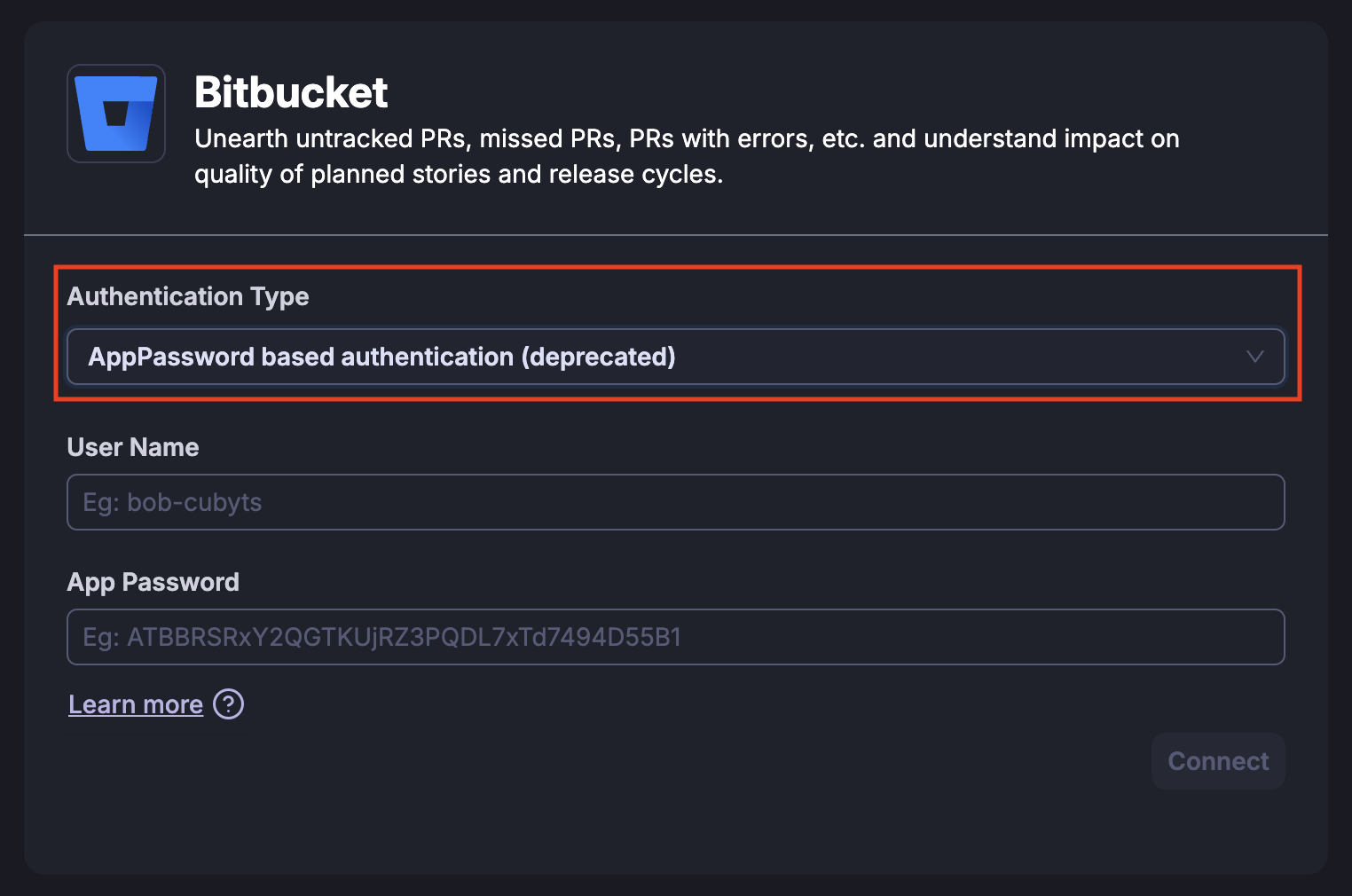
Step 2 - Select App Password based authentication type to trigger the integration
Step 3 - Create a Bitbucket password
1. Go to settings and select 'Personal Bitbucket Settings'

2. In personal settings, select 'App passwords'

3. Select read permissions for account, project, repository, and pull requests

Step 4 - Click on Create and copy the app password(a) along with your username (b), repository Url (c)
a. App password (by clicking on Create CTA on the top bar)

b. Username (from account settings)

c. Repository URL from the address bar
Step 5: Paste on the Cubyts Bitbucket integration page and click on 'Connect' to enable integration
The repository selection, project selection and approver workflows are identical to Github.Was this article helpful?
That’s Great!
Thank you for your feedback
Sorry! We couldn't be helpful
Thank you for your feedback
Feedback sent
We appreciate your effort and will try to fix the article